Chapter 5: Hooks and Automation — Event-Driven Workflows
Hooks let you run shell commands automatically when Claude Code events occur. This chapter covers configuration, practical examples, and patterns for building automated workflows.
What Are Hooks?
Hooks are shell commands that Claude Code executes automatically in response to specific events. They run outside of Claude's decision-making — Claude does not choose whether to run them; they fire whenever the triggering event occurs.
Use hooks to:
- Auto-format code after Claude edits a file
- Run linters before accepting changes
- Send notifications when Claude finishes a task
- Validate changes against project rules before they are applied
- Log activity for auditing and debugging
Hook Events
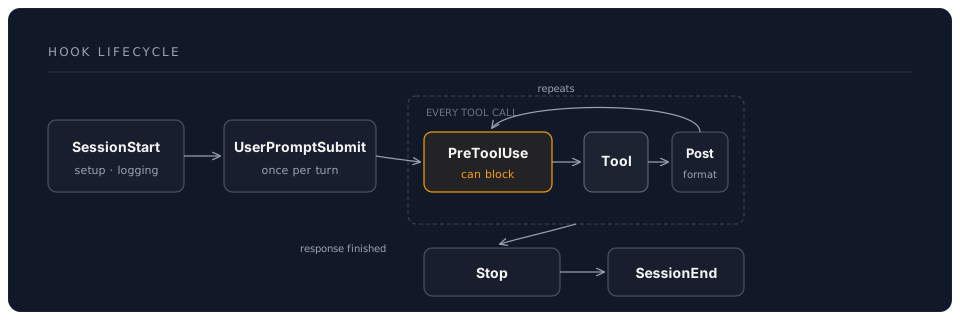
Claude Code fires hooks on these events:
| Event | When It Fires | Common Use |
|---|---|---|
PreToolUse | Before Claude uses any tool | Validation, gatekeeping |
PostToolUse | After Claude uses any tool | Formatting, logging |
UserPromptSubmit | When you send a message | Input processing, context injection |
SessionStart | When a Claude Code session begins | Environment setup, notifications |
Stop | When Claude finishes a response | Quality checks, notifications |
SessionEnd | When a Claude Code session ends | Cleanup, summary notifications |
Configuring Hooks
Hooks are defined in .claude/settings.json (project-level) or ~/.claude/settings.json (global).
Basic Structure
{
  "hooks": {
    "PostToolUse": [
      {
        "matcher": "Edit",
        "command": "npx prettier --write $CLAUDE_FILE_PATH"
      }
    ]
  }
}
Each hook has:
- matcher — Which tool or event variant to match (optional — omit to match all)
- command — The shell command to run
Environment Variables in Hooks
Claude Code sets environment variables that your hook commands can use:
| Variable | Available In | Contents |
|---|---|---|
$CLAUDE_FILE_PATH | PostToolUse (Edit, Write) | Path to the file that was modified |
$CLAUDE_TOOL_NAME | PreToolUse, PostToolUse | Name of the tool being used |
$CLAUDE_SESSION_ID | All events | Unique session identifier |
$CLAUDE_PROMPT | UserPromptSubmit | The user's message text |
Practical Examples
Auto-Format on Save
The most common hook. Runs your formatter every time Claude edits a file:
{
  "hooks": {
    "PostToolUse": [
      {
        "matcher": "Edit",
        "command": "npx prettier --write $CLAUDE_FILE_PATH"
      }
    ]
  }
}
Now whenever Claude proposes and you approve an edit, Prettier formats the file automatically. No more style inconsistencies.
For Python projects:
{
  "hooks": {
    "PostToolUse": [
      {
        "matcher": "Edit",
        "command": "ruff format $CLAUDE_FILE_PATH"
      }
    ]
  }
}
For Rust:
{
  "hooks": {
    "PostToolUse": [
      {
        "matcher": "Edit",
        "command": "rustfmt $CLAUDE_FILE_PATH"
      }
    ]
  }
}
Lint After Edit
Run a linter after every file edit to catch issues immediately:
{
  "hooks": {
    "PostToolUse": [
      {
        "matcher": "Edit",
        "command": "npx eslint --fix $CLAUDE_FILE_PATH"
      }
    ]
  }
}
This catches linting issues the moment they are introduced, rather than discovering them at commit time.
Validation Gatekeeper
Use PreToolUse to prevent Claude from editing certain files:
{
  "hooks": {
    "PreToolUse": [
      {
        "matcher": "Edit",
        "command": "node scripts/validate-edit.js $CLAUDE_FILE_PATH"
      }
    ]
  }
}
Where scripts/validate-edit.js might check:
#!/usr/bin/env node
const path = process.argv[2];
const blocked = [
  'package-lock.json',
  'yarn.lock',
  'pnpm-lock.yaml',
  '.env',
  '.env.local'
];

const filename = path.split('/').pop();
if (blocked.includes(filename)) {
  console.error(`Blocked: ${filename} should not be edited by Claude.`);
  process.exit(1);
}
If the script exits with a non-zero code, the tool use is blocked.
Session Start Notification
Get notified when a Claude Code session starts (useful for logging):
{
  "hooks": {
    "SessionStart": [
      {
        "command": "echo \"Claude Code session started at $(date)\" >> ~/.claude/activity.log"
      }
    ]
  }
}
Completion Notification
Send a desktop notification when Claude finishes a task:
{
  "hooks": {
    "Stop": [
      {
        "command": "notify-send 'Claude Code' 'Task completed'"
      }
    ]
  }
}
On macOS, use osascript instead:
{
  "hooks": {
    "Stop": [
      {
        "command": "osascript -e 'display notification \"Task completed\" with title \"Claude Code\"'"
      }
    ]
  }
}
Security Scanning
Run a security check after Claude writes or edits files:
{
  "hooks": {
    "PostToolUse": [
      {
        "matcher": "Write",
        "command": "npx --yes detect-secrets scan $CLAUDE_FILE_PATH"
      },
      {
        "matcher": "Edit",
        "command": "npx --yes detect-secrets scan $CLAUDE_FILE_PATH"
      }
    ]
  }
}
This catches accidentally committed secrets, API keys, or tokens before they reach your repository.
Type Checking After Edit
For TypeScript projects, run type checking on modified files:
{
  "hooks": {
    "PostToolUse": [
      {
        "matcher": "Edit",
        "command": "npx tsc --noEmit $CLAUDE_FILE_PATH 2>/dev/null || echo 'Type error detected in $CLAUDE_FILE_PATH'"
      }
    ]
  }
}
Combining Multiple Hooks
You can chain multiple hooks for the same event:
{
  "hooks": {
    "PostToolUse": [
      {
        "matcher": "Edit",
        "command": "npx prettier --write $CLAUDE_FILE_PATH"
      },
      {
        "matcher": "Edit",
        "command": "npx eslint --fix $CLAUDE_FILE_PATH"
      },
      {
        "matcher": "Edit",
        "command": "echo \"$(date): Edited $CLAUDE_FILE_PATH\" >> .claude/edit-log.txt"
      }
    ]
  }
}
Hooks run in order. If an earlier hook fails (non-zero exit), subsequent hooks still run. The exception is PreToolUse — a failure there blocks the tool use entirely.
Hook Design Patterns
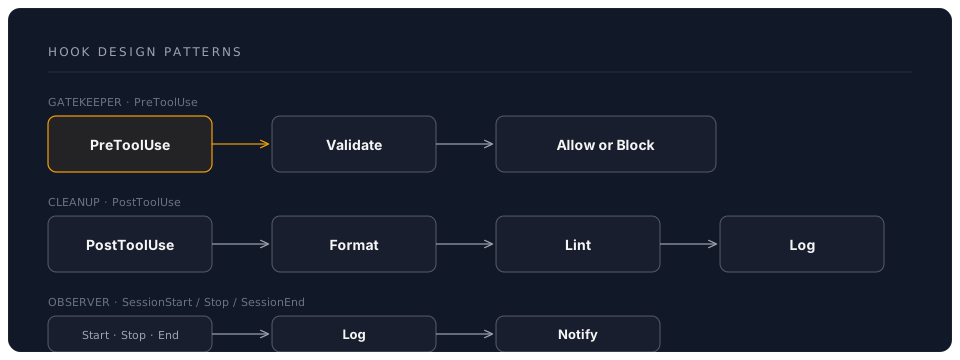
The Gatekeeper Pattern
Use PreToolUse hooks to enforce project rules before Claude makes changes:
Examples:
- Block edits to generated files
- Block edits to files outside the current feature scope
- Enforce branch naming conventions before git operations
The Cleanup Pattern
Use PostToolUse hooks to normalise changes after they are made:
Examples:
- Auto-format all edited files
- Sort imports
- Update copyright headers
- Regenerate type definitions
The Observer Pattern
Use SessionStart, Stop, and SessionEnd for monitoring without interference:
Examples:
- Activity logging for compliance
- Team notifications via Slack or email
- Session duration and token usage tracking
Best Practices
-
Keep hooks fast. Hooks run synchronously — a slow hook slows down every interaction. Format a single file, not the entire project.
-
Fail gracefully. A hook that crashes should not break your Claude Code session. Use
2>/dev/nullor|| truefor non-critical hooks. -
Test hooks independently. Run your hook commands manually before adding them to settings.json. Ensure they work with the expected environment variables.
-
Log hook failures. Redirect stderr to a log file so you can debug issues:
"command": "my-hook.sh $CLAUDE_FILE_PATH 2>> .claude/hook-errors.log" -
Use project-level hooks. Global hooks apply to every project. Project-level hooks (
.claude/settings.json) are specific to the project and can be shared with your team via version control. -
Do not block on network calls. Hooks that make HTTP requests (notifications, logging to external services) should run quickly or run in the background with
&.
Next: Chapter 6: Subagents and Workflows — Multi-Agent Orchestration
DreamLab AI Self-Guided Workshop | June 2026