Core Concepts: Images, Containers, Volumes, Networks
The Building Blocks
Docker has a handful of core concepts. Once you understand these, everything else clicks into place. Let's work through them one at a time.
Images
A Docker image is a read-only template that contains everything needed to run an application: the operating system base, installed software, application code, and configuration. Think of it as a blueprint or a recipe.
Images are built in layers. Each instruction in a Dockerfile adds a new layer on top of the previous one:
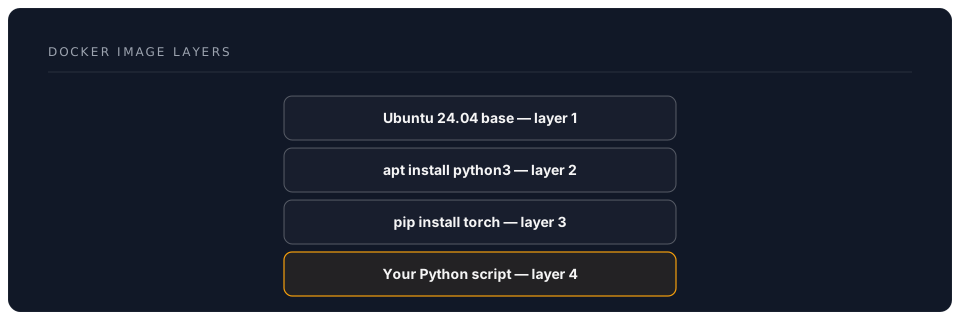
This layering system is clever. If two images both start from Ubuntu 24.04, Docker stores that base layer only once on disk. Layers are shared and cached, which saves both space and download time.
Image Names and Tags
Images are identified by a name and a tag:
ollama/ollama:latest
  |         |    |
  |         |    +-- tag (version)
  |         +------- image name
  +----------------- publisher/namespace
Common tag conventions:
latest-- the most recent version (default if you don't specify a tag)3.11-- a specific version3.11-slim-- a smaller variant with fewer extras3.11-bookworm-- tied to a specific Debian release
Tip: In production, always pin a specific tag rather than using
latest. Thelatesttag can change without warning, breaking your setup.
Containers
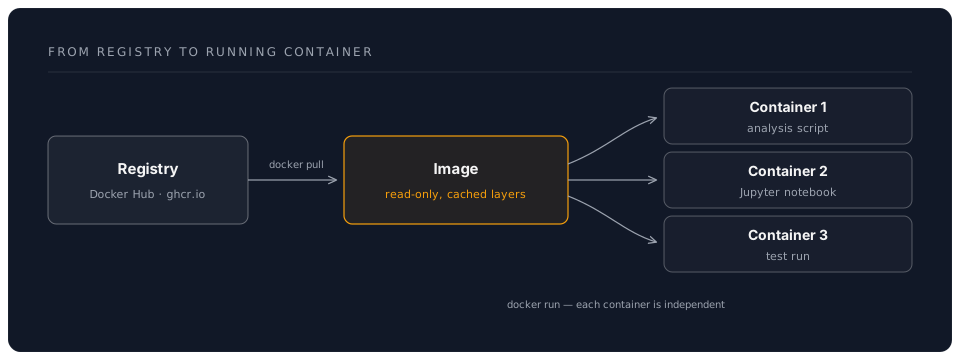
A container is a running instance of an image. If an image is the blueprint, a container is the house built from that blueprint. You can run multiple containers from the same image, and each one is independent.
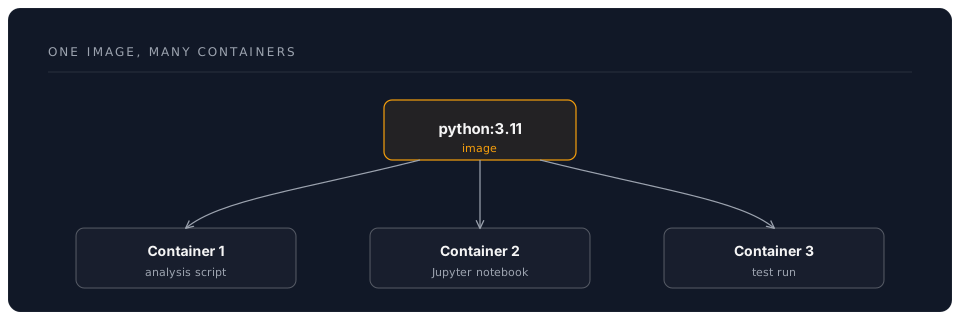
Containers are ephemeral by default. When you stop and remove a container, any changes made inside it are lost. This is a feature, not a bug -- it means you always start from a clean, known state. If you need to keep data, you use volumes (explained below).
Container Lifecycle
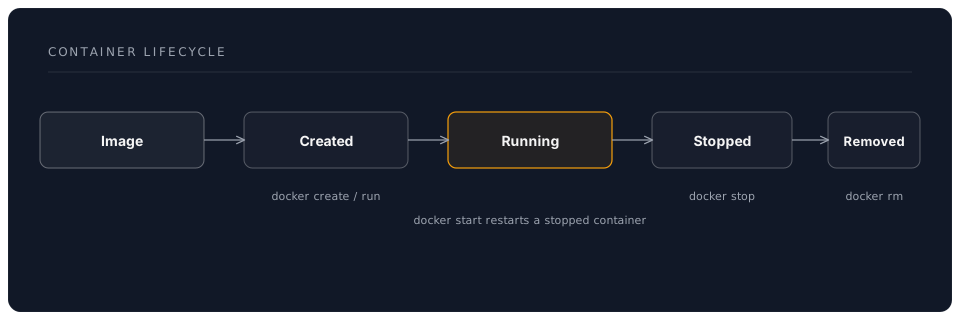
Key points:
- Created -- the container exists but isn't running
- Running -- the container is executing its main process
- Stopped -- the main process has exited, but the container still exists on disk
- Removed -- the container is deleted entirely
Dockerfiles
A Dockerfile is a text file containing instructions for building an image. Each instruction creates a layer. Here's a simple example:
# Start from a Python base image
FROM python:3.11-slim

# Set the working directory inside the container
WORKDIR /app

# Copy requirements file and install dependencies
COPY requirements.txt .
RUN pip install --no-cache-dir -r requirements.txt

# Copy your application code
COPY . .

# Define the command to run when the container starts
CMD ["python", "main.py"]
Common Dockerfile instructions:
| Instruction | Purpose | Example |
|---|---|---|
FROM | Base image to build upon | FROM python:3.11-slim |
WORKDIR | Set working directory | WORKDIR /app |
COPY | Copy files from host into image | COPY . . |
RUN | Execute a command during build | RUN pip install torch |
CMD | Default command when container starts | CMD ["python", "app.py"] |
EXPOSE | Document which port the app uses | EXPOSE 8080 |
ENV | Set environment variables | ENV MODEL_NAME=llama3 |
VOLUME | Declare a mount point for data | VOLUME /data |
Build Context and .dockerignore
When you build an image, Docker sends the entire directory (the "build context") to the engine. A .dockerignore file works like .gitignore -- it tells Docker which files to exclude:
# .dockerignore
.git
__pycache__
*.pyc
.env
node_modules
.venv
Always create a .dockerignore to avoid sending large or sensitive files into your image.
Volumes
Volumes are Docker's mechanism for persistent data. Since containers are ephemeral, anything stored inside a container's filesystem disappears when the container is removed. Volumes exist outside the container lifecycle.
There are two types:
Named Volumes
Docker manages these. They're the simplest option and work well for databases, model files, and other data you want to persist.
# Create a named volume
docker volume create my-models

# Use it in a container
docker run -v my-models:/root/.ollama ollama/ollama
Bind Mounts
These map a specific directory on your host machine into the container. They're useful for development because changes you make on your host appear instantly in the container.
# Mount your current directory into the container
docker run -v $(pwd):/app python:3.11 python /app/script.py
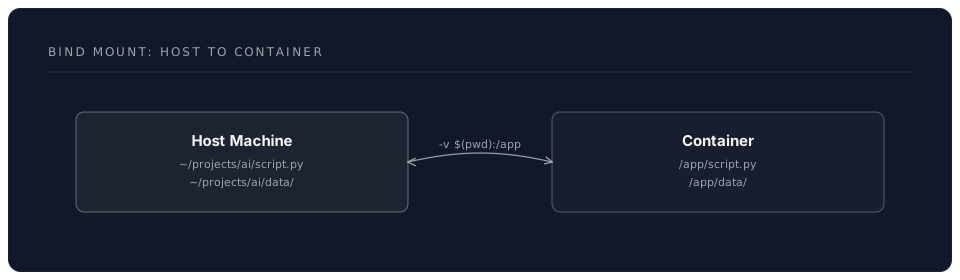
When to use which: Named volumes for data that should persist (databases, models). Bind mounts for source code during development.
Networks
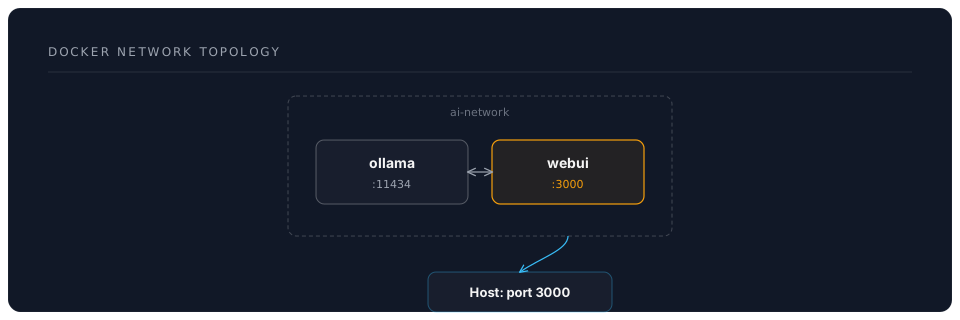
Containers can communicate with each other over Docker networks. By default, Docker creates a bridge network, but you can create custom networks to control which containers can talk to each other.
# Create a custom network
docker network create ai-network

# Run containers on that network
docker run --network ai-network --name ollama ollama/ollama
docker run --network ai-network --name webui open-webui/open-webui
On a shared network, containers can reach each other by name. In the example above, the webui container can connect to ollama using the hostname ollama -- no IP addresses needed.
Docker Compose
Docker Compose is a tool for defining and running multi-container applications. Instead of typing long docker run commands, you describe your entire stack in a YAML file called compose.yaml (or docker-compose.yml).
Here's an example running Ollama and Open WebUI together:
# compose.yaml
services:
  ollama:
    image: ollama/ollama:latest
    ports:
      - "11434:11434"
    volumes:
      - ollama-data:/root/.ollama

  webui:
    image: ghcr.io/open-webui/open-webui:main
    ports:
      - "3000:8080"
    environment:
      - OLLAMA_BASE_URL=http://ollama:11434
    depends_on:
      - ollama

volumes:
  ollama-data:
Then you manage everything with simple commands:
# Start all services
docker compose up -d

# View logs
docker compose logs -f

# Stop everything
docker compose down
Docker Compose is how most real-world multi-service applications are run locally. You'll use it extensively in this workshop.
Docker Desktop vs Alternatives
Docker Desktop
The easiest way to get started. It provides:
- Docker Engine running in a lightweight Linux VM (on Windows/macOS)
- A graphical dashboard for managing containers
- Docker Compose built in
- Automatic updates
Docker Desktop is free for personal use and small businesses (fewer than 250 employees and less than $10M revenue). Larger organisations need a paid subscription.
Alternatives
| Tool | Platform | Notes |
|---|---|---|
| Podman | Linux, macOS, Windows | Drop-in Docker replacement, daemonless, rootless by default |
| OrbStack | macOS only | Faster and lighter than Docker Desktop on Mac |
| Rancher Desktop | All platforms | Open-source, uses containerd or dockerd |
| Colima | macOS, Linux | Lightweight CLI-based Docker runtime |
For this workshop, we recommend Docker Desktop if you're new to containers. The graphical interface helps you understand what's happening. You can always switch to an alternative later -- the Docker CLI commands are the same regardless of which runtime you use.
Quick Reference
| Concept | What it is | Analogy |
|---|---|---|
| Image | Read-only template | Recipe / Blueprint |
| Container | Running instance of an image | Cooked meal / Built house |
| Dockerfile | Instructions to build an image | Recipe card |
| Volume | Persistent storage | External hard drive |
| Network | Communication between containers | Local area network |
| Docker Compose | Multi-container orchestration | Recipe book for a full meal |
| Registry | Storage for images (e.g., Docker Hub) | App store |