Chapter 1: Understanding the Modern AI Coding Ecosystem
June 2026: The AI coding landscape is no longer centred on a single tool. Two terminal-based agents — Claude Code and OpenAI Codex CLI — lead the agentic coding category, while Cursor, Copilot, and a rich open-source ecosystem serve different workflows. This chapter maps the full landscape and explains what makes each tool distinctive.
The 2026 AI Coding Landscape
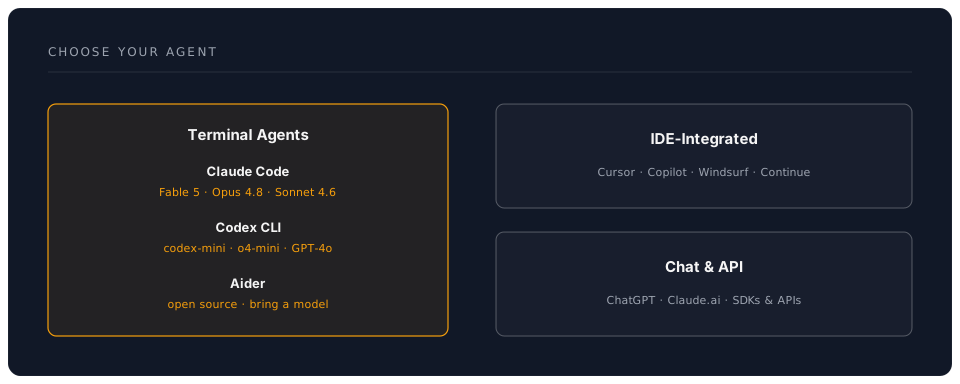
A. Claude Code — Anthropic's Agentic Coding Tool
Claude Code is the most feature-rich terminal-based coding agent available in 2026. It is a standalone tool — not an IDE extension — that runs in your terminal and operates directly on your codebase.
Installation & Access
# Install the CLI globally
npm install -g @anthropic-ai/claude-code

# Start Claude Code in your project directory
cd ~/projects/my-app
claude

# Claude Code is also available as:
# - Desktop app (Mac and Windows)
# - Web app at claude.ai/code
# - VS Code extension (runs inside terminal panel)
# - JetBrains extension
Key Features
| Feature | Description | Benefit |
|---|---|---|
| CLAUDE.md | Project configuration file read at startup | Persistent project context, coding standards, and instructions |
| MCP Servers | Model Context Protocol for tool integration | Connect to databases, APIs, browsers, and custom tools |
| Hooks System | Pre/post hooks for automation | Run linters, tests, or custom scripts automatically |
| Subagents | Spawn parallel child agents | Tackle multiple tasks simultaneously |
| Slash Commands | Built-in commands like /fast, /compact | Quick mode switching and workflow control |
| Agent SDK | Build custom agents programmatically | Create specialised coding workflows |
| 200K Context | Large context window | Handle large codebases and long sessions |
| Git-Native | Full Git integration | Create commits, branches, and PRs directly |
Claude Code Models (June 2026)
| Model | ID | Use Case |
|---|---|---|
| Fable 5 | claude-fable-5 | Latest and most capable — best for complex architecture and novel problems |
| Opus 4.8 | claude-opus-4-8 | Top-tier reasoning — default for Claude Code |
| Sonnet 4.6 | claude-sonnet-4-6 | Best balance of speed, quality, and cost — use via /fast |
| Haiku 4.5 | claude-haiku-4-5-20251001 | Fastest and cheapest — good for simple tasks and high-volume operations |
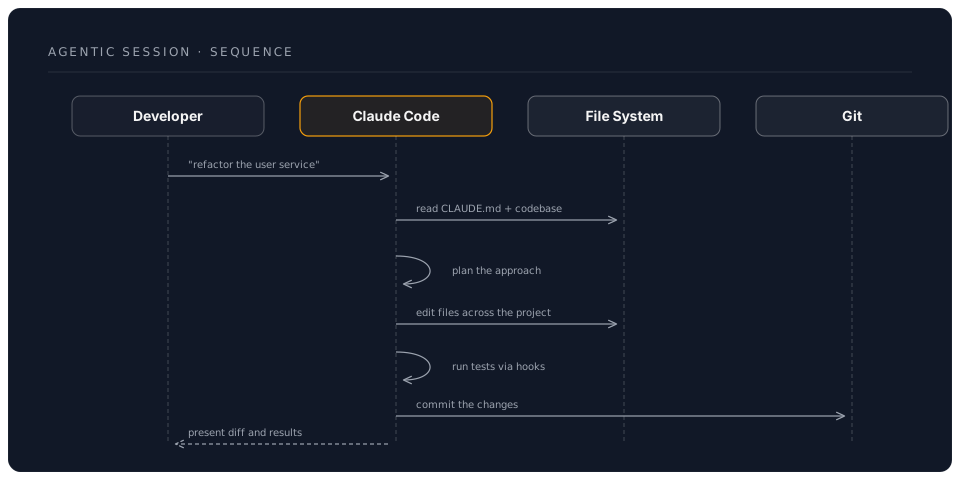
Claude Code Workflow Example
What Makes Claude Code Unique
CLAUDE.md — A markdown file at your project root that Claude Code reads every time it starts. It contains project-specific instructions: tech stack, coding conventions, testing procedures, forbidden actions, and architectural decisions. Unlike a README, it is specifically tailored for the AI agent, not human readers.
MCP (Model Context Protocol) — An open standard that lets Claude Code connect to external tools. You can configure MCP servers for databases, browser automation, Slack, GitHub, or any custom API. This transforms Claude Code from a code editor into a general-purpose development agent.
Hooks — Automated actions triggered before or after specific events. For example: run ESLint after every edit, execute tests before committing, or send notifications when a task completes.
Subagents — Claude Code can spawn child agents that work in parallel. You can delegate independent subtasks to subagents while continuing to work on the main task.
When to Use Claude Code
Ideal For:
- Complex, multi-file refactoring and feature implementation
- Projects requiring deep codebase understanding
- Teams wanting consistent, configurable AI behaviour (via CLAUDE.md)
- Workflows requiring tool integration (MCP)
- Developers who prefer terminal-first workflows
- Building custom AI agents (Agent SDK)
Less Ideal For:
- Quick inline completions while typing (use Copilot/Cursor instead)
- Teams that need fully offline operation
B. OpenAI Codex CLI — Open-Source Terminal Agent
The OpenAI Codex CLI is an open-source coding agent that brings agentic capabilities to the terminal. Released in 2025, it emphasises sandboxed execution and supports multiple model providers.
Installation & Setup
# Install via npm
npm install -g @openai/codex

# Set your API key
export OPENAI_API_KEY="your-api-key-here"

# Start Codex CLI in your project
cd ~/projects/my-app
codex

# Or provide a direct prompt
codex "Add user authentication with JWT tokens"
Key Features
| Feature | Details | Use Case |
|---|---|---|
| Open Source | Full source on GitHub | Audit, fork, contribute |
| Sandboxed Execution | Docker/Seatbelt isolation | Safe autonomous execution |
| AGENTS.MD Support | Project context files | Consistent agent behaviour |
| Multi-Provider | OpenAI, Anthropic, Azure, Ollama | Flexible model choice |
| Model Selection | --model flag | Optimise for cost or capability |
| Multimodal Input | Screenshots, diagrams | Visual task specification |
| Git-Native | Direct repository interaction | Commit, branch, PR workflow |
Codex CLI Approval Modes
# Suggest mode (default) — safest, shows changes for approval
codex --approval-mode suggest "Fix the login bug"

# Auto-edit — reads files and applies patches automatically
codex --approval-mode auto-edit "Refactor to TypeScript"

# Full-auto — reads, writes, and executes commands (sandboxed)
codex --approval-mode full-auto "Add comprehensive test suite"
When to Use Codex CLI
Ideal For:
- Open-source projects wanting an auditable AI agent
- Teams using multiple model providers
- Privacy-sensitive environments needing sandboxed execution
- Developers who want to contribute to the tool itself
- CI/CD pipeline integration
- Terminal-first workflows
Less Ideal For:
- Workflows requiring deep tool integration (Claude Code's MCP is more mature)
- Teams wanting a full desktop/web app experience
C. IDE-Integrated Tools
Cursor AI
A VS Code fork with deep AI integration. Its standout feature is Composer — a multi-file editing interface that lets you describe changes in natural language and see them applied across your project.
Key Features:
- Composer for multi-file natural language editing
- Tab completion with inline suggestions
- Chat sidebar for questions and explanations
- Agent mode for autonomous task execution
- Supports Claude and GPT models as backend
GitHub Copilot
The most widely adopted AI coding tool, integrated directly into VS Code and JetBrains. In 2026, it offers:
Key Features:
- Inline suggestions (the original tab-completion experience)
- Copilot Chat for questions and explanations
- Copilot Workspace for multi-file planning and implementation
- Enterprise features: SSO, policy controls, code referencing
- Free tier for students and open-source maintainers
Windsurf (formerly Codeium)
Focuses on "flow state" coding with its Cascade feature for multi-file editing.
Continue.dev
Free, open-source extension for VS Code and JetBrains. Connects to any model provider (OpenAI, Anthropic, Ollama, etc.). Ideal for teams wanting full control over their AI coding setup.
D. Choosing the Right Tool
Comprehensive Comparison Matrix
| Feature | Claude Code | Codex CLI | Cursor | Copilot |
|---|---|---|---|---|
| Interface | Terminal + desktop + web | Terminal | IDE (VS Code fork) | IDE extension |
| Open Source | No | Yes | No | No |
| Project Config | CLAUDE.md | AGENTS.MD | .cursorrules | - |
| Tool Integration | MCP servers | Limited | Built-in | GitHub ecosystem |
| Multi-File Editing | Excellent | Excellent | Excellent (Composer) | Good (Workspace) |
| Inline Completion | No (use with Copilot) | No | Yes | Yes |
| Sandboxing | OS-level | Docker/Seatbelt | N/A | N/A |
| Subagents | Yes | No | No | No |
| Hooks/Automation | Yes (hooks system) | CI/CD integration | No | GitHub Actions |
| Custom Agents | Agent SDK | Fork the source | No | No |
| Context Window | 200K tokens | 128K tokens | Model-dependent | Model-dependent |
| Offline Support | No | Limited | No | Limited |
| Mobile Access | Yes (web app) | No | No | GitHub Mobile |
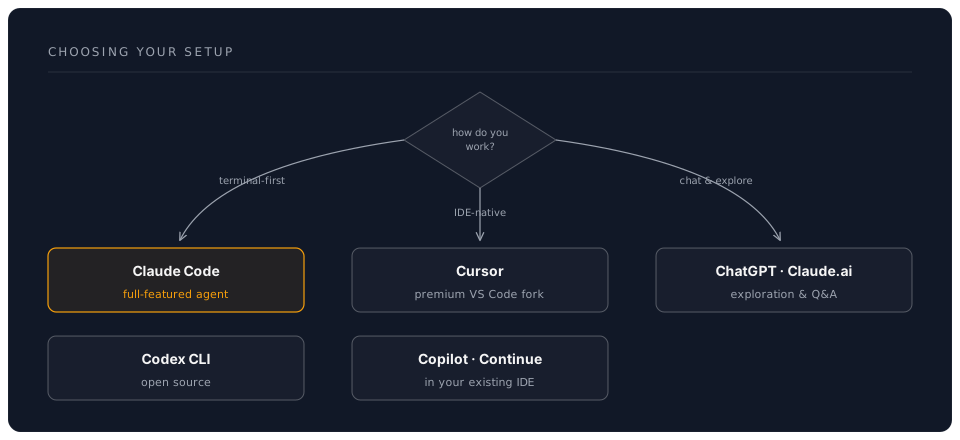
Decision Framework
Recommended Combinations
Many developers use multiple tools together. Common pairings:
1. Claude Code + GitHub Copilot (Most popular)
Workflow:
  - Copilot for inline completions while typing
  - Claude Code for complex multi-file tasks, refactoring, and architecture
  - CLAUDE.md ensures consistent behaviour across sessions
2. Codex CLI + Cursor (Open-source focused)
Workflow:
  - Cursor for IDE-native editing with Composer
  - Codex CLI for terminal automation and CI/CD
  - AGENTS.MD shared between both tools
3. Claude Code + Cursor (Maximum capability)
Workflow:
  - Cursor for quick inline edits and visual feedback
  - Claude Code for deep refactoring, MCP tool integration, and agent workflows
  - Both share the same codebase context
Recommended Workflows by Persona
1. Junior Developer (Learning AI Coding)
Start With: ChatGPT or Claude.ai (web)
Then Add: GitHub Copilot (free for students)
Graduate To: Claude Code or Codex CLI
Monthly Cost: $0-20
2. Professional Developer (Individual Contributor)
Primary: Claude Code (terminal agent)
Secondary: GitHub Copilot (inline completions)
Monthly Cost: API usage + $10/mo
3. Engineering Team (5-10 Members)
Standardise: Claude Code with shared CLAUDE.md templates
Supplement: Copilot Enterprise or Cursor Business
Monthly Cost: API usage + $10-20/developer
4. Enterprise (50+ Developers)
Evaluate: Claude Code (Agent SDK for custom workflows)
Governance: Centralised CLAUDE.md templates, usage monitoring
Integration: MCP servers for internal tools
Monthly Cost: Custom (volume API pricing + tool subscriptions)
Next Steps
Now that you understand the AI coding ecosystem:
- Choose your primary tool (Claude Code or Codex CLI recommended for this workshop)
- Set up authentication and configuration
- Practice with hands-on examples
The best approach is often to start with one terminal agent and one IDE tool, then expand as you discover your preferred workflow.
Next: Chapter 2: Getting Started
Last Updated: June 2026 | Claude Code + OpenAI Codex CLI + Cursor + Copilot