Chapter 6: Resources & Continued Learning
Introduction: Your Visual Version Control Library
This comprehensive resource collection supports your ongoing journey from documentation chaos to visual, version-controlled professionalism. Organised by topic and skill level.
Mermaid Diagram Resources
Official Documentation
- Mermaid Official Docs — Complete syntax reference for every diagram type
- Mermaid Live Editor — Real-time browser-based editor with instant preview (bookmark this!)
- Mermaid GitHub Repository — Source code, issue tracker, and community discussions
- Mermaid Syntax Reference — Quick lookup for flowchart, Gantt, sequence, and more
Diagram Type Guides
Flowcharts:
- Mermaid Flowchart Syntax — Nodes, edges, subgraphs, styling
- Useful for: Process documentation, decision trees, approval flows
Gantt Charts:
- Mermaid Gantt Syntax — Tasks, sections, dependencies, milestones
- Useful for: Project planning, research timelines, roadmaps
Sequence Diagrams:
- Mermaid Sequence Syntax — Participants, messages, loops, alternatives
- Useful for: Workflow documentation, approval chains, system interactions
Mind Maps:
- Mermaid Mind Map Syntax — Hierarchical brainstorming layouts
- Useful for: Planning sessions, idea organisation, project scoping
Entity-Relationship Diagrams:
- Mermaid ER Diagram Syntax — Entities, relationships, attributes
- Useful for: Data modelling, database design, system architecture
State Diagrams:
- Mermaid State Diagram Syntax — States, transitions, forks, joins
- Useful for: Process lifecycle, order tracking, document status workflows
Mermaid Cheat Sheet
Flowchart Quick Reference:
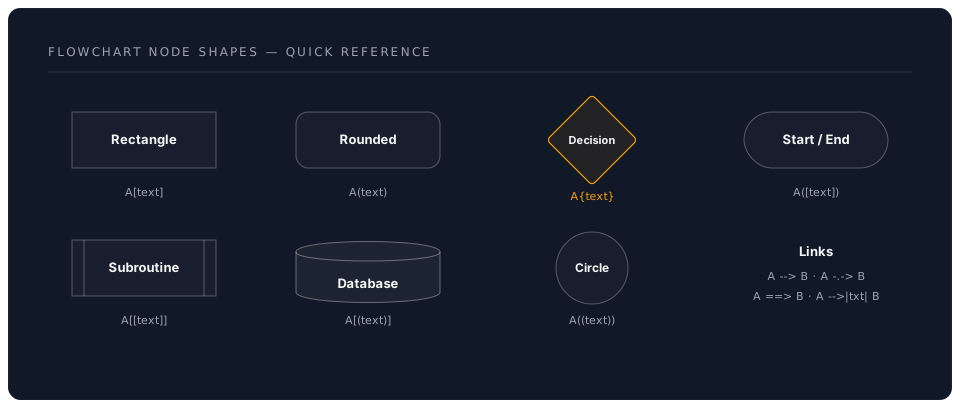
Styling Quick Reference:
style A fill:#4fc3f7,stroke:#01579b,stroke-width:3px
style B fill:#e1f5fe
classDef highlight fill:#ffeb3b,stroke:#f57f17
class A,B highlight
Link Types:
A --> B       Solid line with arrow
A --- B       Solid line without arrow
A -.-> B      Dotted line with arrow
A ==> B       Thick line with arrow
A -->|text| B Labelled connection
AI-Assisted Diagram Generation
Using Claude Code to generate Mermaid diagrams:
Claude Code (Anthropic's AI coding agent) can generate Mermaid diagrams from natural language descriptions. In your VS Code terminal:
Describe your process in plain English, and ask Claude Code to produce
the Mermaid syntax. For example:

"Create a Mermaid flowchart showing a job application process:
candidate applies, HR screens, if qualified then phone interview,
then on-site interview, then offer or rejection."
Using GitHub Copilot for diagrams:
If you have GitHub Copilot installed, type a comment describing the diagram and let Copilot auto-complete the Mermaid syntax:
<!-- Create a Gantt chart for a 3-month marketing campaign -->
Copilot will suggest the complete Mermaid block.
Git & Version Control Resources
Official Documentation
- Git Official Documentation — Comprehensive reference manual
- Git Reference Manual — Command-by-command reference
- Pro Git Book (Free) — The definitive guide, available free online
- GitHub Docs — GitHub-specific features, workflows, and integrations
Visual Learning Resources
Beginner-Friendly:
- Learn Git Branching — Interactive visual tutorial (highly recommended)
- Git Immersion — Guided tour of Git fundamentals
- Atlassian Git Tutorials — Clear explanations with diagrams
Video Tutorials:
- Git and GitHub for Beginners - freeCodeCamp — Comprehensive 1-hour introduction
- Git Explained in 100 Seconds — Quick conceptual overview
- VS Code Git Integration Tutorial — Visual Git in VS Code
Git Cheat Sheet
Essential Commands (for reference — VS Code handles these visually):
# Setup
git init                          # Initialise a new repository
git clone <url>                   # Clone an existing repository

# Daily workflow
git status                        # See what's changed
git add <file>                    # Stage a file
git add .                         # Stage all changes
git commit -m "message"           # Commit with message
git push                          # Push to remote

# Branching
git branch <name>                 # Create a branch
git checkout <name>               # Switch to a branch
git checkout -b <name>            # Create and switch in one step
git merge <branch>                # Merge branch into current

# History
git log --oneline                 # Compact history
git diff                          # See unstaged changes
git diff --staged                 # See staged changes

# Undo
git reset --soft HEAD~1           # Undo last commit, keep changes
git stash                         # Temporarily shelve changes
git stash pop                     # Restore shelved changes
Conventional Commit Types:
| Type | Purpose | Example |
|---|---|---|
feat: | New feature | feat: add project timeline diagram |
fix: | Bug fix | fix: correct Gantt chart date format |
docs: | Documentation | docs: update README with setup instructions |
style: | Formatting | style: improve diagram colour scheme |
refactor: | Restructure | refactor: reorganise project folder layout |
test: | Testing | test: add validation for diagram rendering |
chore: | Maintenance | chore: update .gitignore for OS files |
VS Code Extensions for Visual Version Control
Essential Extensions
GitLens (eamodio.gitlens)
- Marketplace
- Documentation
- Purpose: Inline blame, file history, commit graph, branch comparison
- Free tier covers everything in this workshop
Markdown All in One (yzhang.markdown-all-in-one)
- Marketplace
- Purpose: Markdown editing, table of contents, preview, shortcuts
Mermaid Markdown (bierner.markdown-mermaid)
- Marketplace
- Purpose: Renders Mermaid diagrams in VS Code's Markdown preview
Recommended Extensions
Git Graph (mhutchie.git-graph)
- Marketplace
- Purpose: Beautiful, interactive repository visualisation
- Complements GitLens for understanding branch structures
GitHub Pull Requests and Issues (GitHub.vscode-pull-request-github)
- Marketplace
- Purpose: Create and review pull requests without leaving VS Code
Markdown Preview Mermaid Support (bierner.markdown-mermaid)
- Marketplace
- Purpose: Live Mermaid diagram rendering in the preview pane
Code Spell Checker (streetsidesoftware.code-spell-checker)
- Marketplace
- Purpose: Catch spelling errors in documentation (supports British English)
Optional Power-User Extensions
Mermaid Editor (tomoyukim.vscode-mermaid-editor)
- Live side-by-side Mermaid editing and preview
Markdown PDF (yzane.markdown-pdf)
- Export Markdown (with diagrams) to PDF, HTML, or PNG
Draw.io Integration (hediet.vscode-drawio)
- Full Draw.io diagram editor embedded in VS Code
Markdownlint (davidanson.vscode-markdownlint)
- Enforces consistent Markdown style
Installation Commands
Install all essential and recommended extensions in one go:
code --install-extension eamodio.gitlens \
     --install-extension yzhang.markdown-all-in-one \
     --install-extension bierner.markdown-mermaid \
     --install-extension mhutchie.git-graph \
     --install-extension GitHub.vscode-pull-request-github \
     --install-extension streetsidesoftware.code-spell-checker
GitHub Resources
Getting Started
- GitHub Quickstart — Official beginner guide
- GitHub Skills — Free interactive courses directly on GitHub
- GitHub Flow Guide — The branching workflow we use
GitHub Pages (Free Website Hosting)
- GitHub Pages Documentation — Host websites from your repositories
- Quickstart for GitHub Pages — Your first site in minutes
- Mermaid diagrams render automatically on GitHub Pages and in GitHub's Markdown viewer
Collaboration Features
- About Pull Requests — How to propose and review changes
- About Issues — Task tracking and project management
- GitHub Projects — Kanban boards and project planning
Learning Paths
Beginner Path (Weeks 1-2)
Week 1: Mermaid Mastery
- Create one flowchart per day from a real process
- Build a Gantt chart for your current project
- Write a sequence diagram for a work interaction
- Experiment with mind maps for meeting preparation
- Bookmark the Mermaid Live Editor for daily use
Resources:
- Mermaid Live Editor — Practice here daily
- Mermaid Official Tutorial — Work through each diagram type
Week 2: Git Confidence
- Commit every document change (aim for 3+ commits per day)
- Create a feature branch for a new piece of work
- Push at least one repository to GitHub
- Use GitLens to review your growing commit history
- Write commit messages that explain "why" not just "what"
Resources:
- Learn Git Branching — Interactive practice
- Conventional Commits — Message format reference
Intermediate Path (Weeks 3-4)
Week 3: Integration
- Combine diagrams and version control in a real project
- Use Git branches to experiment with different diagram approaches
- Create a team handbook or process documentation repository
- Share a repository with a colleague for collaboration
- Explore Mermaid theming and advanced styling
Resources:
- Mermaid Theming — Custom colour schemes
- GitHub Collaboration Guide — Working with others
Week 4: Automation
- Set up a
.gitignorefile for your projects - Explore pre-commit hooks for documentation quality
- Use Claude Code or GitHub Copilot to generate diagrams from descriptions
- Create reusable Mermaid templates for common diagram types
- Build a personal wiki or knowledge base in a Git repository
Resources:
- gitignore Templates — Standard ignore patterns
- Pre-commit Framework — Automated quality checks
Advanced Path (Month 2+)
Advanced Skills:
- Interactive rebase for clean commit history
- Git bisect for finding when changes were introduced
- GitHub Actions for automated documentation builds
- Custom Mermaid themes matching your organisation's brand
- Contributing to open-source documentation projects
Resources:
- GitHub Actions Documentation — Automation pipelines
- Advanced Git (Atlassian) — Rebase, cherry-pick, bisect
Tools & Utilities
Diagram Tools
Browser-Based:
- Mermaid Live Editor — Primary tool for Mermaid diagrams
- Draw.io / diagrams.net — Free diagramming for complex visuals
- Excalidraw — Hand-drawn style diagrams, Git-friendly JSON format
Desktop Applications:
- GitHub Desktop — Visual Git client for those who prefer a standalone app
- GitKraken — Advanced Git visualisation (free for public repos)
Export & Conversion
Mermaid to Image:
- Mermaid CLI — Command-line export to PNG, SVG, PDF
npm install -g @mermaid-js/mermaid-cli mmdc -i input.md -o output.png - The Mermaid Live Editor also offers direct PNG/SVG download
Markdown to PDF:
- Pandoc — Universal document converter (supports Mermaid with filters)
- VS Code extension: Markdown PDF (
yzane.markdown-pdf)
Markdown to Slides:
- Marp — Create presentations from Markdown (supports Mermaid)
- VS Code extension: Marp for VS Code (
marp-team.marp-vscode)
Configuration Templates
Recommended VS Code Settings for Documentation
Add these to your settings.json (Ctrl+, then click the {} icon):
{
  "editor.wordWrap": "on",
  "editor.minimap.enabled": false,
  "editor.fontSize": 14,
  "editor.lineHeight": 1.6,
  "markdown.preview.fontSize": 16,
  "gitlens.currentLine.enabled": true,
  "gitlens.currentLine.format": "${author}, ${date} - ${message}",
  "gitlens.codeLens.enabled": true,
  "gitlens.hovers.currentLine.over": "line",
  "git.enableSmartCommit": true,
  "git.confirmSync": false,
  "git.autofetch": true,
  "files.autoSave": "afterDelay",
  "files.autoSaveDelay": 1000,
  "cSpell.language": "en-GB"
}
Recommended .gitignore for Documentation Projects
# OS files
.DS_Store
Thumbs.db
Desktop.ini

# Editor files
.vscode/settings.json
*.swp
*~

# Build outputs
*.pdf
*.png
/dist/
/build/

# Dependencies
node_modules/

# Secrets (never commit these)
.env
.env.local
*.key
Community & Support
Forums & Communities
Git & GitHub:
- GitHub Community Forum — Official discussion forum
- Reddit r/git — Community discussions and help
- Stack Overflow — Git — Q&A for specific issues
Mermaid:
- Mermaid GitHub Discussions — Feature requests and help
- Mermaid Discord — Community chat
VS Code:
- VS Code Discord — Official community
- Reddit r/vscode — Tips, extensions, and workflows
Newsletters & Blogs
- GitHub Blog — Product updates and best practices
- VS Code Blog — Monthly release notes and tips
- GitKraken Blog — Visual Git tutorials and workflows
- Conventional Commits — Commit message standard
Workshop Support
- Workshop Discord channel — Ask questions and share wins
- Email: workshop@dreamlab.ai
- Office Hours: Fridays 2-3pm GMT
- Documentation: This website
Troubleshooting Guide
Mermaid Issues
Diagram not rendering in preview:
- Verify
bierner.markdown-mermaidextension is installed - Check syntax at Mermaid Live Editor — paste your code to find errors
- Ensure the code block uses
```mermaid(not```mermaid-jsor similar) - Reload VS Code:
Ctrl+Shift+P> "Developer: Reload Window"
Syntax errors:
- Node IDs cannot contain spaces — use
A[Label with spaces]notA Label - Arrow syntax:
-->(not->or=>) - Decision diamonds use
{curly braces}not<angle brackets> - Gantt dates must match the
dateFormatspecified
Git Issues
"Not a git repository" error:
# Verify you're in the right folder
pwd
# Initialise if needed
git init
Git not found after installation:
- Restart VS Code completely (close all windows)
- On Windows: Ensure "Add to PATH" was selected during Git installation
- Verify: Open terminal and run
git --version
Push rejected (authentication):
- GitHub now requires personal access tokens, not passwords
- Create a token: GitHub > Settings > Developer settings > Personal access tokens
- Or use GitHub CLI:
gh auth login
Merge conflict:
- Open the conflicted file — VS Code highlights the conflict
- Choose: "Accept Current", "Accept Incoming", "Accept Both", or edit manually
- Stage the resolved file and commit
Accidentally committed to wrong branch:
# Create a new branch with your changes
git branch correct-branch
# Reset current branch
git reset --hard HEAD~1
# Switch to the correct branch
git checkout correct-branch
Performance Issues
VS Code slow with large repositories:
{
  "git.autoRepositoryDetection": "subFolders",
  "gitlens.advanced.repositorySearchDepth": 1,
  "files.watcherExclude": {
    "**/.git/objects/**": true,
    "**/node_modules/**": true
  }
}
Quick Reference Cards
Daily Git Workflow
Morning:
  git pull origin main        (get latest changes)

During work:
  [edit files]
  git add <files>             (stage changes)
  git commit -m "type: msg"   (save snapshot)

End of day:
  git push                    (backup to GitHub)
Mermaid Diagram Decision Guide
| Need to show... | Use this diagram |
|---|---|
| A process or decision flow | flowchart TD |
| A project timeline | gantt |
| How things interact over time | sequenceDiagram |
| Brainstorming or categories | mindmap |
| Data relationships | erDiagram |
| States and transitions | stateDiagram-v2 |
| Distribution or proportions | pie |
Essential Keyboard Shortcuts
+------------------------------------------+
|    VISUAL VERSION CONTROL SHORTCUTS       |
+------------------------------------------+
| Source Control     Ctrl+Shift+G           |
| Commit changes     Ctrl+Enter             |
| Markdown preview   Ctrl+Shift+V           |
| Command Palette    Ctrl+Shift+P           |
| Terminal           Ctrl+`                 |
| GitLens Graph      Ctrl+Shift+P >         |
|                    "Show Commit Graph"     |
| File History       Ctrl+Shift+P >         |
|                    "Show File History"     |
| Branch switch      Click branch in        |
|                    status bar              |
+------------------------------------------+
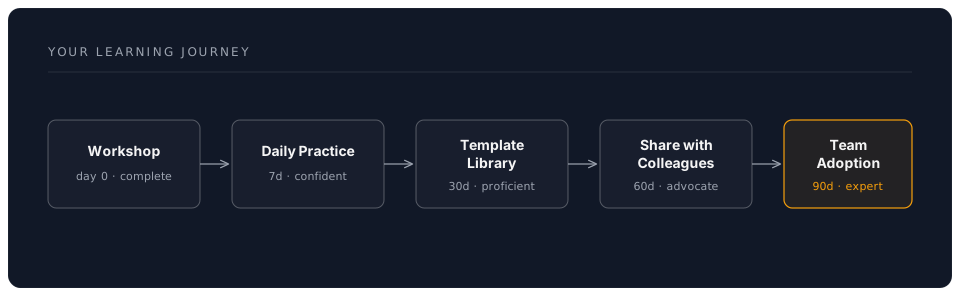
Your Learning Journey
Next Steps
Today
- Push your workshop project to GitHub
- Bookmark the Mermaid Live Editor
- Create one diagram for tomorrow's first meeting
This Week
- Use Git for all document work (commit daily)
- Create 5 different Mermaid diagrams for real tasks
- Explore one new diagram type you haven't tried
- Share a diagram with a colleague
This Month
- Build a reusable diagram template library
- Establish Git as your default for all projects
- Help one colleague get started with these tools
- Create a team documentation repository
Conclusion
Your transformation from manual documentation to visual, version-controlled workflows doesn't end with this workshop — it begins here. The tools you've learned today will compound in value every time you create a diagram in seconds instead of hours, every time Git saves you from lost work, and every time a colleague can understand your process at a glance.
Remember:
- The Mermaid Live Editor is your best friend for experimentation
- Commit early, commit often, push before you leave
- Every diagram you create saves future meetings and explanations
- Version control is not just for developers — it's for anyone who values their work
Workshop Complete!