Chapter 2: Hands-On Visual Version Control - Mastering Git the Modern Way
⏱️ Estimated Time: 90 minutes 🎯 Difficulty: Beginner to Intermediate 📋 Prerequisites: VS Code with GitLens installed, GitHub account
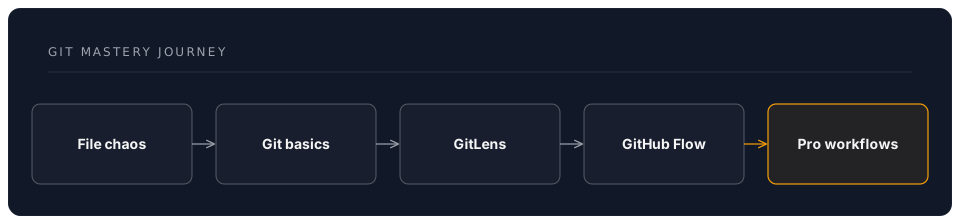
Your Git Mastery Journey
Transform from manual file saving chaos to professional version control workflows using modern visual tools.
2.1 GitLens - Your Git Superpower
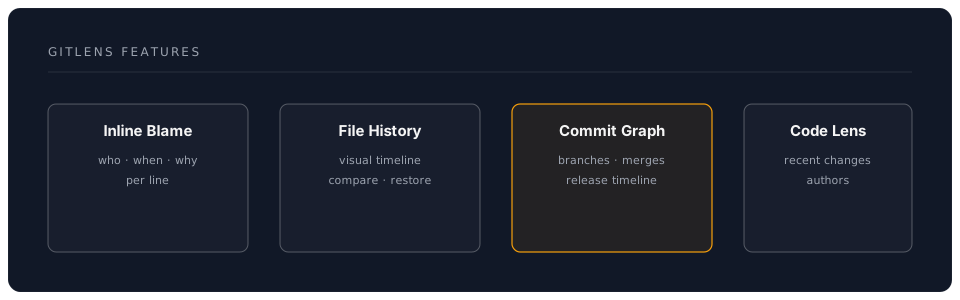
Understanding GitLens Features
GitLens transforms Git from command-line intimidation to visual clarity.
Key Features Overview
2.1.1 Inline Blame - Know Who Changed What
💡 Most powerful feature: See author and date of every line
Enable Inline Blame:
- Open settings:
Ctrl+, - Search: "gitlens blame"
- Enable:
Gitlens: Current Line > Enabled
What You'll See:
function calculateTotal(items) {  // John Doe, 3 days ago - Add tax calculation
  return items.reduce((sum, item) => sum + item.price, 0);
}
Customization:
{
  "gitlens.currentLine.enabled": true,
  "gitlens.currentLine.format": "${author}, ${date} - ${message}",
  "gitlens.currentLine.dateFormat": "MMM D, YYYY",
  "gitlens.hovers.currentLine.over": "line"
}
🎯 Exercise: Find Change History
Task: Investigate when a specific line was changed
- Open any file in your project
- Place cursor on interesting line
- Look at inline blame annotation
- Click annotation for full details
- View commit, see all changes in that commit
Pro Tip: Hover over any line to see detailed change history!
2.1.2 File History - Time Travel for Files
View File History:
- Method 1: Right-click file → "GitLens: Open File History"
- Method 2: Click GitLens icon in sidebar → "File History"
- Method 3:
Ctrl+Shift+P→ "GitLens: Show File History"
Visual Timeline View:
📅 Today, 2:30 PM      Fix validation bug            You
📅 Yesterday, 4:15 PM  Add user authentication       Jane
📅 2 days ago, 10:00 AM Initial user model           John
📅 Last week          Project setup                  You
Compare Any Two Versions:
- Open File History
- Click first commit
- Click "Compare with..."
- Select second commit
- See side-by-side diff!
2.1.3 Visual Commit Graph
💡 Best for: Understanding branch strategy, release planning
Open Commit Graph:
- Keyboard:
Ctrl+Shift+P→ "GitLens: Show Commit Graph" - Sidebar: Click GitLens → "Commit Graph"
What You'll See:
* Commit 3 (main, origin/main)
|\
| * Commit 2 (feature-branch)
|/
* Commit 1
Features:
- Click commit to see details
- Right-click to compare, cherry-pick, revert
- Visual branch merges
- Tag and release tracking
📝 Note: Reading the Graph
Lines mean:
- Vertical line: Same branch
- Diagonal split: New branch created
- Diagonal merge: Branches merged
Colors indicate:
- Blue: Current branch
- Green: Other branches
- Red: Tags/releases
2.1.4 Side Bar Views
GitLens Sidebar Panels:
-
Commits View
- Recent commits
- Quick access to changes
- Search commits
-
Branches View
- All branches
- Local and remote
- Quick checkout
-
Stashes View
- Saved work-in-progress
- Quick restore
- Named stashes
-
Contributors View
- Team members
- Contribution stats
- Filter by author
2.2 VS Code Source Control Panel
Mastering the Built-in Git Interface
Open Source Control: Ctrl+Shift+G
2.2.1 The Three-Stage Workflow
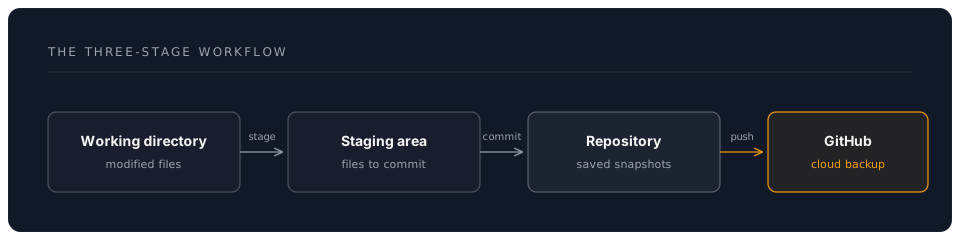
Visual Indicators:
- M (Modified): Changed file
- U (Untracked): New file
- D (Deleted): Removed file
- C (Conflict): Merge conflict
2.2.2 Staging Changes
Stage Individual Files:
- Hover over file in Source Control panel
- Click
+icon to stage
Stage All Changes:
- Click
+icon next to "Changes" header
Stage Specific Lines:
- Open file
- Select lines in diff view
- Right-click → "Stage Selected Ranges"
🎯 Exercise: Selective Staging
Scenario: You changed 3 files but only want to commit 2
- Make changes to 3 files
- Stage only files related to feature A
- Commit with message: "Add feature A"
- Stage remaining file
- Commit with message: "Fix unrelated typo"
Why? Keeps history clean and commits focused!
2.2.3 Writing Great Commit Messages
Conventional Commits Format:
<type>[optional scope]: <description>

[optional body]

[optional footer]
Types:
feat:New featurefix:Bug fixdocs:Documentationstyle:Formattingrefactor:Code restructuretest:Adding testschore:Maintenance
Examples:
✅ Good:
feat(auth): add password reset functionality

Users can now request password reset via email. Implements secure
token generation and expiration.

Closes #42
❌ Bad:
update
fixed stuff
changes
💡 Pro Tips:
- First line: 50 chars max
- Body: 72 chars per line
- Use imperative mood: "Add" not "Added"
- Explain WHY, not WHAT (code shows what)
⚠️ Warning: Commit Message Tools
Install commitizen for structured commits:
npm install -g commitizen
npm install -g cz-conventional-changelog
Then use: git cz instead of git commit
Interactive prompts guide you to perfect commits!
2.3 GitHub Desktop Integration
Visual Git for Non-Command-Line Users
Download: desktop.github.com
Why GitHub Desktop?
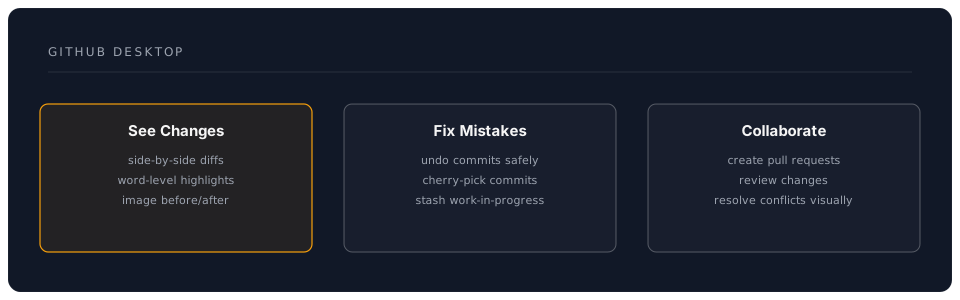
Key Features
1. Beautiful Diffs:
- Color-coded changes
- Word-level highlighting
- Image diffs (before/after)
2. Branch Management:
- Visual branch switcher
- Create from any commit
- Drag-drop to merge
3. Collaboration:
- Pull request creation
- Review changes
- Resolve conflicts visually
💡 When to use:
- Learning Git concepts
- Complex merge conflicts
- Visual code review
- Teaching teammates
2.4 Git Graph Extension
Visualize Your Repository
Extension ID: mhutchie.git-graph
Features:
🌳 Beautiful branch visualization
🔍 Search commits
🏷️ Tag management
🔀 Visual merge/rebase
📊 Contribution stats
Open Git Graph:
- Status bar → "Git Graph" button
Ctrl+Shift+P→ "Git Graph: View Git Graph"
Use Cases:
-
Understand Branch Strategy:
main: ●───●───●───● \ / feature: ●───● -
Find Merge Points:
- See where branches merged
- Identify merge conflicts
- Track feature integration
-
Release Planning:
- Tag releases
- See version history
- Plan next version
🎯 Exercise: Navigate Your History
Using Git Graph:
- Open Git Graph
- Find your first commit
- Right-click → "Checkout"
- See project in initial state!
- Return to latest: Checkout
main
Reflection: How has project evolved?
2.5 Modern Git Workflows
GitHub Flow (Recommended for Teams)
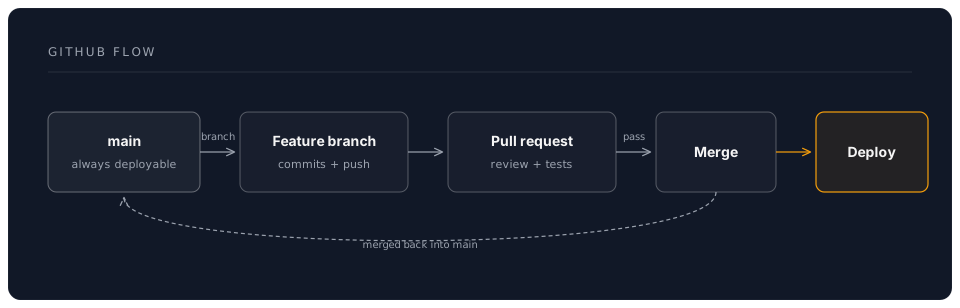
Rules:
mainis always deployable- Create branch for each feature
- Push early, push often
- Use pull requests for review
- Merge only when tests pass
- Deploy immediately after merge
Feature Branch Workflow
Step-by-Step:
1. Create Feature Branch:
# In VS Code terminal
git checkout -b feature/user-authentication
2. Make Changes & Commit:
# Make changes
git add .
git commit -m "feat(auth): implement login endpoint"
3. Push to GitHub:
git push -u origin feature/user-authentication
4. Create Pull Request:
- Go to GitHub
- Click "Compare & pull request"
- Add description
- Request reviewers
5. Address Review Feedback:
# Make changes
git add .
git commit -m "fix(auth): handle edge case"
git push
6. Merge:
- Squash commits (clean history)
- Delete feature branch
- Pull latest main
💡 Tip: Branch Naming Conventions
Good branch names:
feature/user-profile
bugfix/login-timeout
hotfix/security-patch
docs/api-documentation
refactor/payment-service
Bad branch names:
my-branch
test
fixes
update
temporary
Pattern: type/short-description
2.6 Pre-commit Hooks with Husky
Automate Quality Checks
What are hooks? Scripts that run before/after Git actions
Setup Husky (2026 Best Practices)
1. Install Husky:
npm install --save-dev husky
npx husky init
2. Add pre-commit hook:
# .husky/pre-commit
npm run lint
npm run test
npm run format
3. Add commit-msg hook:
# .husky/commit-msg
npx --no -- commitlint --edit $1
Common Hooks
Pre-commit:
- Run linters
- Format code
- Run tests
- Check types
- Validate file sizes
Commit-msg:
- Enforce commit format
- Check message length
- Prevent swear words
Pre-push:
- Run full test suite
- Build project
- Security scans
⚠️ Warning: Bypass Hooks Carefully
Skip hooks (emergency only):
git commit --no-verify -m "hotfix: critical bug"
Why avoid:
- Breaks automation
- Skips quality checks
- Team inconsistency
When okay:
- Hotfix deployment
- Reverting broken commit
- Temporary work-in-progress
2.7 Advanced GitLens Features
Code Lens Annotations
Inline code insights:
function processPayment(amount) {  // 👤 3 authors | 📝 12 changes
  // Calculate tax
  const tax = amount * 0.2;        // 👤 Sarah Jones, 2 days ago
  return amount + tax;
}
Enable Code Lens:
{
  "gitlens.codeLens.enabled": true,
  "gitlens.codeLens.authors.enabled": true,
  "gitlens.codeLens.recentChange.enabled": true
}
Interactive Rebase Editor
💡 Rewrite history safely
Use case: Clean up commits before merging
Steps:
- GitLens sidebar → Right-click commits
- "Rebase commits..."
- Visual editor appears
- Drag to reorder
- Mark commits to squash/edit
- Apply!
Operations:
- Pick: Keep commit
- Reword: Change message
- Squash: Combine with previous
- Drop: Remove commit
- Edit: Modify commit
⚠️ Never rebase shared branches!
Compare Branches
Visual branch comparison:
- GitLens → Branches view
- Right-click branch
- "Compare with..."
- Select another branch
- See all differences!
2.8 Resolving Merge Conflicts
Visual Conflict Resolution
When conflicts happen:
<<<<<<< HEAD
const API_URL = "https://api.production.com";
=======
const API_URL = "https://api.staging.com";
>>>>>>> feature-branch
VS Code conflict tools:
-
Inline Actions:
- Accept Current Change
- Accept Incoming Change
- Accept Both Changes
- Compare Changes
-
3-Way Merge Editor:
- Left: Your changes
- Right: Their changes
- Bottom: Result
- Visual merge!
Enable 3-way merge:
{
  "git.mergeEditor": true
}
🎯 Exercise: Practice Conflict Resolution
Create intentional conflict:
- Create branch:
conflict-test - Change line 1 to "Version A"
- Commit and push
- Checkout
main - Change same line to "Version B"
- Commit
- Try to merge
conflict-test - Resolve conflict!
- Commit resolution
Skills practiced: Merging, conflict resolution, branch management
2.9 GitHub Integration Features
Work with Pull Requests in VS Code
Extension: GitHub Pull Requests and Issues
Features:
- View PRs in sidebar
- Comment on code
- Request changes
- Merge from VS Code
- Track PR status
Setup:
- Install extension
- Sign in to GitHub
- See PRs in sidebar
- Comment inline!
GitHub Copilot for Git
AI-powered commit messages:
Extension: GitHub Copilot

Feature: Suggest commit messages based on changes

Usage:
1. Stage changes
2. Click sparkle icon in commit message box
3. AI suggests message!
4. Edit and commit
GitHub Copilot Workspace
AI-powered issue-to-PR workflow (available on github.com):
What it does:
  - Start from a GitHub Issue
  - Copilot analyses the codebase and proposes a plan
  - Generates a multi-file implementation
  - Opens a pull request with all changes

Use case:
  - Turn bug reports into fixes
  - Implement feature requests from issue descriptions
  - Great for open-source contribution workflows
💡 Tip: Copilot Workspace works directly on GitHub — no local setup needed. Pair it with local VS Code review for best results.
2.10 Git Best Practices Checklist
Professional Git Habits
Daily Workflow:
- Pull latest changes before starting work
- Create feature branch for each task
- Commit frequently with clear messages
- Push to backup your work
- Review diff before committing
- Run tests before pushing
Commit Hygiene:
- One logical change per commit
- Descriptive commit messages
- No secrets in commits
- Follow conventional commits
- Squash WIP commits before merging
Branch Management:
- Delete merged branches
- Keep
mainstable - Sync with remote regularly
- Use descriptive branch names
- Never force push shared branches
Code Review:
- Review your own changes first
- Add PR description and context
- Link related issues
- Address all feedback
- Thank reviewers!
2.11 Troubleshooting Common Issues
"Detached HEAD" State
Problem: Checked out specific commit, now lost
Solution:
git checkout main  # Return to main branch
git branch my-work <commit-hash>  # Create branch from commit
Accidentally Committed to Wrong Branch
Problem: Committed to main instead of feature branch
Solution:
git branch feature-branch  # Create branch with changes
git reset --hard origin/main  # Reset main
git checkout feature-branch  # Switch to new branch
Need to Undo Last Commit
Keep changes:
git reset --soft HEAD~1
Discard changes:
git reset --hard HEAD~1
Pushed Sensitive Data
Emergency procedure:
- Remove from repository
- Use
git filter-branchor BFG Repo Cleaner - Force push (team coordination!)
- Rotate compromised secrets immediately
⚠️ Prevention: Use pre-commit hooks to scan for secrets!
🎉 Achievement Unlocked!
You now master: ✅ GitLens visual Git superpowers ✅ VS Code Source Control panel ✅ Modern Git workflows (GitHub Flow) ✅ Conventional commits ✅ Pre-commit automation ✅ Visual conflict resolution ✅ Professional Git habits
Next Level Skills
Continue learning:
- Git rebase interactive mode
- Git bisect for bug hunting
- Git submodules for dependencies
- Git worktrees for parallel work
- Advanced GitLens features
Pro Tips:
💡 Daily Git Ritual:
# Morning
git pull origin main

# Throughout day
git add .
git commit -m "feat: ..."
git push

# Before leaving
git push --all
📝 Keyboard Shortcuts to Master:
Ctrl+Shift+G: Source ControlCtrl+Enter: Commit changesCtrl+K Ctrl+P: Compare with...Alt+Left/Right: Navigate history
🚀 You're now a Git visualization master!