Chapter 2: Essential Setup: Accounts & Installations
⏱️ Time: 5 minutes (this page) + 45-60 minutes (sub-chapters) | 🎯 Difficulty: 🟢 Beginner
This chapter guides you through the essential setup required to establish your digital toolkit. Although the initial configuration involves several steps, it is primarily a one-time process. Completing this setup provides a robust, free, and powerful environment for your creative technology projects.
💡 Tip: Work through the sub-chapters in order. Each step builds on the previous one, and the whole process should take under an hour.
What You Will Set Up
The setup process is divided into four sub-chapters, each covering a distinct piece of the toolkit:
2a. Creating Your GitHub Account
- Register on GitHub (the cloud platform for code hosting and collaboration)
- Choose a professional username
- Configure your profile and email settings
- Set up SSH keys for secure, password-free access to your repositories
2b. Installing Git & VS Code
- Install Git (the version control software that runs locally on your machine)
- Configure your Git identity (name and email)
- Install Visual Studio Code, a free and powerful code editor
- Add essential VS Code extensions for Git visualisation and AI integration
2c. Setting Up AI API Keys (2026 Edition)
- Understand the AI provider landscape (Anthropic, Google, OpenAI, GitHub Copilot)
- Set up Claude Code with your free claude.ai account (no API key needed)
- Optionally obtain API keys from providers for advanced or third-party tool use
- Learn to store API keys securely using environment variables and
.gitignore
2d. Configuring AI Coding Assistants in VS Code (2026 Edition)
- Install and authenticate Claude Code
- Create your first CLAUDE.md project configuration file
- Optionally set up GitHub Copilot, Continue.dev, or Cursor alongside Claude Code
- Learn best practices for combining multiple AI tools
Setup Workflow
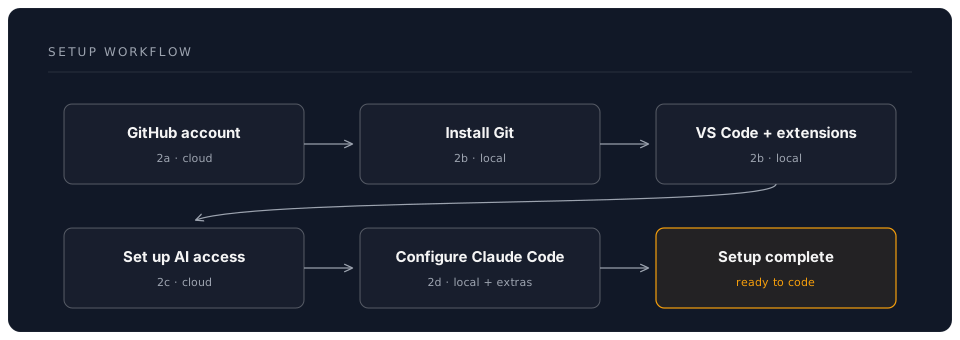
The following diagram summarises the setup path from start to finish:
Pre-Flight Checklist
Use this checklist to track your progress. Tick each item as you complete it:
- GitHub account created and email verified
- SSH key generated and added to your GitHub account (or HTTPS access confirmed)
- Git installed and
git --versionreturns 2.40 or newer - Git identity configured (
git config --global user.nameanduser.email) - VS Code installed and launching correctly
- Essential extensions installed (Git Graph, Markdown Preview Mermaid Support)
- Claude Code installed (
npm install -g @anthropic-ai/claude-code) and authenticated - Test prompt works — run
claudein a project directory and ask a simple question
Optional (but recommended)
- GitHub Copilot activated (free for students and educators)
- CLAUDE.md file created in a test project
-
.gitignoreconfigured to exclude.envand credential files
Time Estimates
| Sub-Chapter | Estimated Time | Requires Internet |
|---|---|---|
| 2a. GitHub Account | 5-10 minutes | Yes |
| 2b. Git & VS Code | 10-15 minutes | Yes (downloads) |
| 2c. AI API Keys | 15-20 minutes | Yes |
| 2d. AI Assistant Config | 20-30 minutes | Yes |
What If Something Goes Wrong?
Setup can sometimes hit snags — a download that fails, a version mismatch, or an authentication error. Here are some general strategies:
- Read the error message carefully. Most installation errors tell you exactly what went wrong.
- Search the error message. Copy the key part of the error and search for it online. Stack Overflow and GitHub Issues are reliable sources.
- Ask Claude Code. Once it is installed, Claude Code is excellent at diagnosing setup problems. Describe what you tried and paste the error message.
- Ask a colleague or instructor. Fresh eyes often spot the issue immediately.
📝 Note: Every developer encounters setup frustrations. It is a normal part of the process, not a reflection of your ability.
Ready?
Take your time with each step. Once completed, you will have a fully functional development environment ready for productive work — and you will not need to repeat this process.
First up: Chapter 2a: Creating Your GitHub Account