Profile Management and Settings Sync
Learning Objectives
- Create and manage VS Code profiles for different workflows
- Sync settings, extensions, and keybindings across devices
- Share profiles with teams
- Optimise profile performance
- Troubleshoot sync issues
What are Profiles?
Profiles = Complete VS Code Configurations
Each profile contains:
- Settings
- Extensions
- Keybindings
- UI state
- Snippets
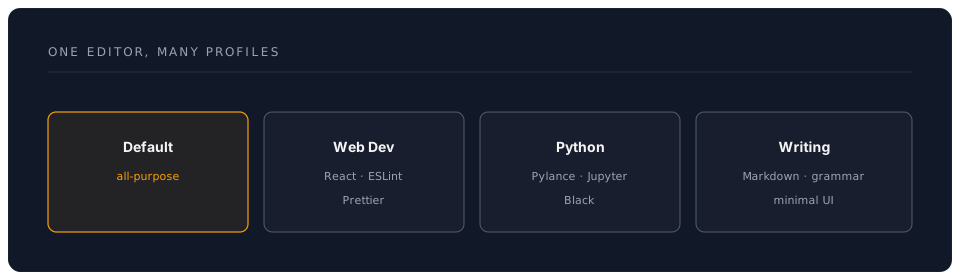
Creating Profiles
Method 1: UI
1. Click gear icon (bottom left)
2. "Profiles" → "Create Profile"
3. Choose:
   - Empty Profile
   - Copy from current
   - Profile template
4. Name it (e.g., "Web Development")
5. Select what to include
Method 2: Command Palette
Ctrl+Shift+P → "Profiles: Create Profile"
Profile Templates
Web Development
Extensions:
- ESLint
- Prettier
- GitLens
- Auto Rename Tag
- Live Server
- Copilot
Settings:
{
  "editor.formatOnSave": true,
  "editor.defaultFormatter": "esbenp.prettier-vscode",
  "eslint.autoFixOnSave": true
}
Python Data Science
Extensions:
- Python
- Pylance
- Jupyter
- Black Formatter
- autoDocstring
Settings:
{
  "[python]": {
    "editor.defaultFormatter": "ms-python.black-formatter",
    "editor.rulers": [88]
  },
  "jupyter.askForKernelRestart": false
}
Writing & Documentation
Extensions:
- Markdown All in One
- Grammarly
- Code Spell Checker
- Paste Image
Settings:
{
  "workbench.activityBar.visible": false,
  "workbench.statusBar.visible": false,
  "editor.minimap.enabled": false,
  "zenMode.centerLayout": true
}
Minimal Performance
Extensions:
- None or essential only (GitLens, language support)
Settings:
{
  "editor.minimap.enabled": false,
  "editor.suggest.enabled": false,
  "extensions.autoUpdate": false,
  "telemetry.telemetryLevel": "off"
}
Switching Profiles
Quick Switch:
Click gear icon → Profiles → Select profile
Or: Ctrl+Shift+P → "Profiles: Switch Profile"
Status Bar Indicator:
Bottom left shows current profile name
Profile Export & Import
Export Profile
1. Gear icon → Profiles
2. Select profile → "Export Profile"
3. Choose what to include
4. Save as .code-profile file
Import Profile
1. Gear icon → Profiles → "Import Profile"
2. Select .code-profile file
3. Review contents
4. Import
Share with Team
Create .code-profile:
{
  "name": "Company Standard",
  "settings": "{...}",
  "extensions": [
    "dbaeumer.vscode-eslint",
    "esbenp.prettier-vscode"
  ],
  "keybindings": "[...]"
}
Distribute:
1. Save to shared location (Git repo, Google Drive)
2. Team imports profile
3. Everyone has same setup
Settings Sync
Enable Sync
1. Click gear icon → "Turn on Settings Sync"
2. Sign in (GitHub or Microsoft)
3. Select what to sync:
   ✅ Settings
   ✅ Keyboard Shortcuts
   ✅ Extensions
   ✅ User Snippets
   ✅ UI State
   ✅ Profiles
What Gets Synced
Synced:
- User settings.json
- Keybindings.json
- Extensions list
- Snippets
- UI state (sidebar, panel positions)
- Profiles
NOT Synced:
- Workspace settings
- Extension data (varies by extension)
- Local files
Manual Sync
Ctrl+Shift+P:
- "Settings Sync: Show Synced Data"
- "Settings Sync: Turn Off"
- "Settings Sync: Configure"
Sync Across Devices
Scenario: Work desktop → Home laptop → Cloud VM
1. Enable sync on work desktop
2. Install VS Code on laptop
3. Sign in with same account
4. Sync downloads automatically
5. Repeat for cloud VM
Updates propagate:
- Change extension on desktop → Syncs to laptop
- Add snippet on laptop → Syncs to VM
- Install extension on VM → Syncs everywhere
Profile-Specific Settings
Override Settings per Profile
// User settings.json (applies to all profiles unless overridden)
{
  "editor.fontSize": 14
}

// Web Dev profile settings
{
  "editor.fontSize": 12,  // Override
  "editor.formatOnSave": true  // Profile-specific
}
Profile Icons
Customise profile appearance:
1. Click profile name
2. "Edit Icon"
3. Choose emoji or upload image
Advanced Profile Management
Profile Templates
Create template for team:
// company-profile.json
{
  "name": "Company Standard",
  "settings": {
    "editor.tabSize": 2,
    "files.eol": "\n",
    "editor.formatOnSave": true,
    "editor.codeActionsOnSave": {
      "source.fixAll.eslint": "explicit"
    }
  },
  "extensions": [
    "dbaeumer.vscode-eslint@2.4.0",
    "esbenp.prettier-vscode@10.0.0",
    "eamodio.gitlens@14.0.0"
  ]
}
Conditional Extensions
Extensions per profile:
Web Dev: Install ESLint, Prettier
Python: Install Python, Jupyter (NOT ESLint)
Writing: Install Markdown, Grammarly (NOTHING else)
Result: Faster startup, less clutter
Troubleshooting
Sync Not Working
Check:
1. Signed in? (gear icon → account name shown)
2. Internet connection
3. Sync enabled? (gear icon → Settings Sync: ON)
4. Conflicts? (Ctrl+Shift+P → "Settings Sync: Show Synced Data")
Reset Sync:
Ctrl+Shift+P → "Settings Sync: Reset Local"
Beware: Overwrites local with cloud
Profile Not Switching
Solution:
1. Reload window (Ctrl+Shift+P → "Reload Window")
2. Verify profile selected (bottom left)
3. Check for extension conflicts
Extensions Missing After Profile Switch
Cause: Extensions installed locally, not in profile
Solution:
1. Switch to correct profile
2. Install extension
3. It's now part of that profile
Pro Tips
Tip 1: Auto-Switch Profiles
Use workspace settings:
// project/.vscode/settings.json
{
  "extensions.profileName": "Web Development"
}
VS Code suggests switching when opening workspace.
Tip 2: Backup Profiles
Export regularly:
1. Export each profile monthly
2. Save to Git repo or cloud storage
3. Version control for rollback
Tip 3: Minimal Profile for Performance
Use when:
- Low-powered device
- Large project
- Remote connection slow
Settings:
{
  "extensions.autoUpdate": false,
  "files.watcherExclude": {
    "**/node_modules": true
  },
  "search.followSymlinks": false
}
Tip 4: Share Profiles via Git
Workflow:
# Export profile
code --export-profile "Web Dev" > web-dev-profile.code-profile

# Commit to repo
git add web-dev-profile.code-profile
git commit -m "Add Web Dev profile"

# Team imports
code --import-profile web-dev-profile.code-profile
Tip 5: Profile Per Project Type
Structure:
Default → General use
Frontend → React, Vue, Angular
Backend → Node.js, Python, Rust
DevOps → Docker, Kubernetes, Terraform
Data → Python, Jupyter, R
Assessment
Create Your Profile System:
- Identify 3-5 workflows you have
- Create profile for each
- Configure extensions and settings
- Export profiles
- Enable Settings Sync
- Test switching between profiles
Success Criteria:
- Multiple functional profiles
- Settings sync working
- Profiles exported/backed up
- Faster workflow with right profile
Resources
Time: 2 hours Difficulty: Beginner to Intermediate