Settings and Customisation
Learning Objectives
By the end of this module, you will:
- Master VS Code's three-tier settings system (User, Workspace, Folder)
- Configure settings via UI and JSON
- Create custom snippets for rapid code generation
- Set up language-specific configurations
- Optimise editor behaviour for your workflow
- Understand settings sync and portability
Core Concepts
The Three-Tier Settings System
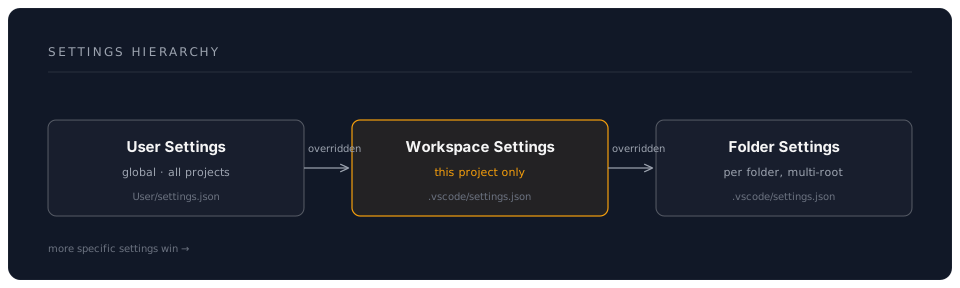
Priority Order (last wins):
- Default Settings (VS Code built-in)
- User Settings (your global preferences)
- Workspace Settings (project-specific)
- Folder Settings (multi-root workspace folders)
Accessing Settings
Method 1: UI
Ctrl+, (Cmd+, on Mac)
Method 2: JSON
Ctrl+Shift+P → "Preferences: Open User Settings (JSON)"
Ctrl+Shift+P → "Preferences: Open Workspace Settings (JSON)"
Method 3: Settings Search
Ctrl+, → Type setting name in search
Essential Settings Categories
1. Editor Configuration
Complete Editor Settings Example:
{
  // Font & Typography
  "editor.fontFamily": "'Fira Code', 'Cascadia Code', 'JetBrains Mono', Consolas, monospace",
  "editor.fontSize": 14,
  "editor.fontLigatures": true,
  "editor.lineHeight": 22,
  "editor.letterSpacing": 0.5,

  // Visual Guides
  "editor.rulers": [80, 120],
  "editor.renderWhitespace": "boundary",
  "editor.renderControlCharacters": true,
  "editor.guides.bracketPairs": "active",
  "editor.bracketPairColorization.enabled": true,

  // Behavior
  "editor.tabSize": 2,
  "editor.insertSpaces": true,
  "editor.detectIndentation": true,
  "editor.wordWrap": "on",
  "editor.wordWrapColumn": 120,

  // Code Actions
  "editor.formatOnSave": true,
  "editor.formatOnPaste": false,
  "editor.codeActionsOnSave": {
    "source.fixAll": "explicit",
    "source.organizeImports": "explicit"
  },

  // IntelliSense
  "editor.quickSuggestions": {
    "other": true,
    "comments": true,
    "strings": true
  },
  "editor.suggestSelection": "first",
  "editor.inlineSuggest.enabled": true,
  "editor.acceptSuggestionOnCommitCharacter": true,

  // Minimap
  "editor.minimap.enabled": true,
  "editor.minimap.maxColumn": 120,
  "editor.minimap.renderCharacters": false,

  // Cursor & Selection
  "editor.cursorBlinking": "smooth",
  "editor.cursorSmoothCaretAnimation": "on",
  "editor.multiCursorModifier": "alt",
  "editor.selectionHighlight": true
}
2. Files & Auto-Save
{
  // Auto-Save
  "files.autoSave": "onFocusChange", // Options: off, afterDelay, onFocusChange, onWindowChange
  "files.autoSaveDelay": 1000,

  // File Handling
  "files.trimTrailingWhitespace": true,
  "files.trimFinalNewlines": true,
  "files.insertFinalNewline": true,
  "files.eol": "\n", // Use LF on all platforms

  // File Associations
  "files.associations": {
    "*.jsx": "javascriptreact",
    "*.tsx": "typescriptreact",
    ".env.*": "dotenv",
    "Dockerfile.*": "dockerfile"
  },

  // Exclude from Explorer
  "files.exclude": {
    "**/.git": true,
    "**/.DS_Store": true,
    "**/node_modules": true,
    "**/__pycache__": true,
    "**/.pytest_cache": true,
    "**/dist": false, // false = can toggle visibility
    "**/build": false
  }
}
3. Workbench Appearance
{
  // Theme
  "workbench.colorTheme": "One Dark Pro",
  "workbench.iconTheme": "material-icon-theme",
  "workbench.productIconTheme": "material-product-icons",

  // Layout
  "workbench.activityBar.location": "default", // or "top", "bottom", "hidden"
  "workbench.sideBar.location": "left",
  "workbench.panel.defaultLocation": "bottom",
  "workbench.editor.showTabs": "multiple",
  "workbench.editor.wrapTabs": true,

  // Behavior
  "workbench.startupEditor": "newUntitledFile",
  "workbench.editor.enablePreview": false, // Disable preview mode
  "workbench.editor.closeEmptyGroups": true,

  // Tree View
  "workbench.tree.indent": 12,
  "workbench.tree.renderIndentGuides": "always"
}
4. Terminal Configuration
{
  "terminal.integrated.fontSize": 13,
  "terminal.integrated.fontFamily": "MesloLGS NF, Consolas, monospace",
  "terminal.integrated.lineHeight": 1.2,

  // Behavior
  "terminal.integrated.cursorBlinking": true,
  "terminal.integrated.cursorStyle": "line",
  "terminal.integrated.scrollback": 10000,

  // Shell Selection (per platform)
  "terminal.integrated.defaultProfile.windows": "PowerShell",
  "terminal.integrated.defaultProfile.osx": "zsh",
  "terminal.integrated.defaultProfile.linux": "bash",

  // Copy/Paste
  "terminal.integrated.copyOnSelection": true,
  "terminal.integrated.rightClickBehavior": "default"
}
5. Language-Specific Settings
JavaScript/TypeScript:
{
  "[javascript]": {
    "editor.defaultFormatter": "esbenp.prettier-vscode",
    "editor.formatOnSave": true,
    "editor.codeActionsOnSave": {
      "source.fixAll.eslint": "explicit"
    }
  },
  "[typescript]": {
    "editor.defaultFormatter": "esbenp.prettier-vscode",
    "editor.formatOnSave": true
  },
  "[typescriptreact]": {
    "editor.defaultFormatter": "esbenp.prettier-vscode"
  },

  "javascript.updateImportsOnFileMove.enabled": "always",
  "typescript.updateImportsOnFileMove.enabled": "always",
  "javascript.suggest.autoImports": true,
  "typescript.suggest.autoImports": true
}
Python:
{
  "[python]": {
    "editor.defaultFormatter": "ms-python.black-formatter",
    "editor.formatOnSave": true,
    "editor.codeActionsOnSave": {
      "source.organizeImports": "explicit"
    },
    "editor.rulers": [88, 120]
  },

  "python.languageServer": "Pylance",
  "python.analysis.typeCheckingMode": "basic",
  "python.analysis.autoImportCompletions": true,
  "python.linting.enabled": true,
  "python.linting.pylintEnabled": false,
  "python.linting.flake8Enabled": true,
  "python.formatting.provider": "none" // Use black-formatter extension
}
Markdown:
{
  "[markdown]": {
    "editor.wordWrap": "on",
    "editor.quickSuggestions": {
      "comments": "on",
      "strings": "on",
      "other": "on"
    },
    "editor.formatOnSave": false,
    "editor.rulers": []
  },

  "markdown.preview.fontSize": 14,
  "markdown.preview.lineHeight": 1.6
}
Custom Snippets
Creating Snippets
Access Snippets:
Ctrl+Shift+P → "Configure User Snippets"
Select language or "New Global Snippets file"
Example Snippets
JavaScript/TypeScript Snippets:
{
  "Console Log": {
    "prefix": "clg",
    "body": [
      "console.log('$1:', $1);"
    ],
    "description": "Console log with label"
  },

  "Arrow Function": {
    "prefix": "af",
    "body": [
      "const ${1:functionName} = (${2:params}) => {",
      "  ${3:// function body}",
      "};"
    ],
    "description": "Arrow function"
  },

  "React Functional Component": {
    "prefix": "rfc",
    "body": [
      "import React from 'react';",
      "",
      "interface ${1:ComponentName}Props {",
      "  ${2:// props}",
      "}",
      "",
      "const ${1:ComponentName}: React.FC<${1:ComponentName}Props> = ({${3:props}}) => {",
      "  return (",
      "    <div>",
      "      ${4:// JSX}",
      "    </div>",
      "  );",
      "};",
      "",
      "export default ${1:ComponentName};"
    ],
    "description": "React functional component with TypeScript"
  },

  "Try-Catch Block": {
    "prefix": "try",
    "body": [
      "try {",
      "  ${1:// code}",
      "} catch (error) {",
      "  console.error('${2:Error message}:', error);",
      "  ${3:// error handling}",
      "}"
    ],
    "description": "Try-catch block"
  }
}
Python Snippets:
{
  "Main Function": {
    "prefix": "main",
    "body": [
      "def main():",
      "    ${1:pass}",
      "",
      "",
      "if __name__ == '__main__':",
      "    main()"
    ],
    "description": "Python main function"
  },

  "Class Definition": {
    "prefix": "class",
    "body": [
      "class ${1:ClassName}:",
      "    \"\"\"${2:Class description}\"\"\"",
      "    ",
      "    def __init__(self${3:, args}):",
      "        \"\"\"Initialize ${1:ClassName}.\"\"\"",
      "        ${4:pass}",
      "    ",
      "    def ${5:method_name}(self${6:, args}):",
      "        \"\"\"${7:Method description}.\"\"\"",
      "        ${8:pass}"
    ],
    "description": "Python class with docstrings"
  },

  "Pytest Function": {
    "prefix": "test",
    "body": [
      "def test_${1:function_name}():",
      "    \"\"\"Test ${2:description}.\"\"\"",
      "    # Arrange",
      "    ${3:pass}",
      "    ",
      "    # Act",
      "    ${4:pass}",
      "    ",
      "    # Assert",
      "    assert ${5:condition}"
    ],
    "description": "Pytest test function"
  }
}
Markdown Snippets:
{
  "Code Block": {
    "prefix": "code",
    "body": [
      "```${1:language}",
      "${2:code}",
      "```"
    ],
    "description": "Markdown code block"
  },

  "Mermaid Diagram": {
    "prefix": "mermaid",
    "body": [
      "```mermaid",
      "graph TD",
      "    A[${1:Start}] --> B[${2:Process}]",
      "    B --> C[${3:End}]",
      "```"
    ],
    "description": "Mermaid flowchart"
  },

  "Table": {
    "prefix": "table",
    "body": [
      "| ${1:Header 1} | ${2:Header 2} | ${3:Header 3} |",
      "|--------------|--------------|--------------|",
      "| ${4:Row 1 Col 1} | ${5:Row 1 Col 2} | ${6:Row 1 Col 3} |"
    ],
    "description": "Markdown table"
  }
}
Snippet Variables
Available Variables:
| Variable | Description |
|---|---|
$1, $2, etc. | Tab stops |
$0 | Final cursor position |
${1:default} | Tab stop with default value |
| `${1 | option1,option2 |
$TM_FILENAME | Current filename |
$TM_FILENAME_BASE | Filename without extension |
$TM_DIRECTORY | Current directory |
$TM_FILEPATH | Full file path |
$CLIPBOARD | Clipboard contents |
$CURRENT_YEAR | Current year |
$CURRENT_DATE | Current date (YYYY-MM-DD) |
Example with Variables:
{
  "File Header": {
    "prefix": "header",
    "body": [
      "/**",
      " * @file $TM_FILENAME",
      " * @description ${1:Description}",
      " * @author ${2:Your Name}",
      " * @date $CURRENT_DATE",
      " */"
    ],
    "description": "File header comment"
  }
}
Workspace-Specific Configuration
Creating a Workspace
Method 1: Save Current Folder as Workspace
File → Save Workspace As...
Method 2: Multi-Root Workspace
// myproject.code-workspace
{
  "folders": [
    {
      "path": "./frontend",
      "name": "Frontend"
    },
    {
      "path": "./backend",
      "name": "Backend"
    },
    {
      "path": "./shared",
      "name": "Shared"
    }
  ],
  "settings": {
    "files.exclude": {
      "**/node_modules": true
    },
    "search.exclude": {
      "**/dist": true
    }
  },
  "extensions": {
    "recommendations": [
      "dbaeumer.vscode-eslint",
      "esbenp.prettier-vscode"
    ]
  }
}
Project-Specific Settings Example
Full-Stack Project (.vscode/settings.json):
{
  // Global project settings
  "files.exclude": {
    "**/.git": true,
    "**/node_modules": true,
    "**/__pycache__": true,
    "**/dist": true,
    "**/build": true
  },

  // Search exclusions
  "search.exclude": {
    "**/node_modules": true,
    "**/dist": true,
    "**/.next": true
  },

  // Language-specific for this project
  "[typescript]": {
    "editor.defaultFormatter": "esbenp.prettier-vscode",
    "editor.formatOnSave": true,
    "editor.codeActionsOnSave": {
      "source.organizeImports": "explicit",
      "source.fixAll.eslint": "explicit"
    }
  },

  "[python]": {
    "editor.defaultFormatter": "ms-python.black-formatter",
    "editor.rulers": [88]
  },

  // ESLint
  "eslint.workingDirectories": [
    "./frontend",
    "./backend"
  ],

  // Python
  "python.defaultInterpreterPath": "${workspaceFolder}/.venv/bin/python",
  "python.envFile": "${workspaceFolder}/.env",

  // Recommended extensions
  "extensions.recommendations": [
    "dbaeumer.vscode-eslint",
    "esbenp.prettier-vscode",
    "ms-python.python",
    "eamodio.gitlens"
  ]
}
Advanced Customisation
Custom Color Theme Tweaks
Override theme colors:
{
  "workbench.colorCustomizations": {
    // General UI
    "editor.background": "#1e1e1e",
    "editor.foreground": "#d4d4d4",
    "editorLineNumber.foreground": "#858585",
    "editorLineNumber.activeForeground": "#c6c6c6",

    // Syntax highlighting
    "editor.selectionBackground": "#264f78",
    "editor.inactiveSelectionBackground": "#3a3d41",

    // Git colors
    "gitDecoration.modifiedResourceForeground": "#e2c08d",
    "gitDecoration.deletedResourceForeground": "#c74e39",
    "gitDecoration.untrackedResourceForeground": "#73c991",

    // Terminal
    "terminal.background": "#1e1e1e",
    "terminal.foreground": "#d4d4d4",

    // Specific to theme
    "[One Dark Pro]": {
      "editor.background": "#21252b"
    }
  },

  "editor.tokenColorCustomizations": {
    "comments": "#6A9955",
    "strings": "#CE9178",
    "keywords": "#C586C0",
    "functions": "#DCDCAA"
  }
}
Task Configurations
Create tasks.json for custom commands:
// .vscode/tasks.json
{
  "version": "2.0.0",
  "tasks": [
    {
      "label": "Build Project",
      "type": "shell",
      "command": "npm run build",
      "group": {
        "kind": "build",
        "isDefault": true
      },
      "problemMatcher": ["$tsc"]
    },
    {
      "label": "Run Tests",
      "type": "shell",
      "command": "npm test",
      "group": {
        "kind": "test",
        "isDefault": true
      }
    },
    {
      "label": "Start Dev Server",
      "type": "shell",
      "command": "npm run dev",
      "isBackground": true,
      "problemMatcher": {
        "pattern": {
          "regexp": "^.*$",
          "file": 1,
          "location": 2,
          "message": 3
        },
        "background": {
          "activeOnStart": true,
          "beginsPattern": ".*starting.*",
          "endsPattern": ".*ready.*"
        }
      }
    }
  ]
}
Run tasks:
Ctrl+Shift+P → "Tasks: Run Task"
Or: Ctrl+Shift+B (default build task)
Pro Tips
Tip 1: Settings Search is Powerful
Ctrl+, → Type: "font" → See all font-related settings
Ctrl+, → Type: "@modified" → See only settings you've changed
Ctrl+, → Type: "@ext:eamodio.gitlens" → See extension-specific settings
Tip 2: Sync Settings Across Machines
Enable Settings Sync:
Ctrl+Shift+P → "Settings Sync: Turn On"
Choose what to sync:
  ✅ Settings
  ✅ Keyboard Shortcuts
  ✅ Extensions
  ✅ Snippets
  ✅ UI State
Tip 3: Export/Import Settings
Export all settings:
# Copy settings file
cp ~/.config/Code/User/settings.json ~/my-vscode-settings.json

# Or on Windows
copy %APPDATA%\Code\User\settings.json my-vscode-settings.json
Share with team:
# In project root
cp ~/my-vscode-settings.json .vscode/settings.json
git add .vscode/settings.json
git commit -m "Add team VS Code settings"
Tip 4: Use Profiles (VS Code 1.75+)
Create profiles for different workflows:
1. Ctrl+Shift+P → "Profiles: Create Profile"
2. Name: "Web Development"
3. Choose settings/extensions to include
4. Switch profiles: Bottom left icon
Example Profiles:
- Web Dev: React, ESLint, Prettier, GitLens
- Python: Python, Jupyter, Black, Pylance
- Writing: Markdown extensions, Grammarly, minimal UI
- Minimal: No extensions, fast startup
Tip 5: Keybinding for Quick Settings
// keybindings.json
[
  {
    "key": "ctrl+shift+,",
    "command": "workbench.action.openSettingsJson"
  }
]
Common Pitfalls
Pitfall 1: Workspace Settings Override User Settings
Problem: Changes not applying Solution: Check workspace settings
1. Ctrl+Shift+P → "Preferences: Open Workspace Settings (JSON)"
2. Look for conflicting settings
3. Remove from workspace if should be user-level
Pitfall 2: Extensions Fighting Over Formatting
Problem: Inconsistent formatting Solution: Explicit formatter per language
{
  "[javascript]": {
    "editor.defaultFormatter": "esbenp.prettier-vscode"
  },
  // Not this:
  "editor.defaultFormatter": "esbenp.prettier-vscode"
}
Pitfall 3: Sync Issues Between Platforms
Problem: Settings don't work on different OS Solution: Platform-specific settings
{
  "terminal.integrated.defaultProfile.windows": "PowerShell",
  "terminal.integrated.defaultProfile.osx": "zsh",
  "terminal.integrated.defaultProfile.linux": "bash",

  "editor.fontFamily": "Fira Code",
  // Override on Windows if needed
  "[windows]": {
    "editor.fontFamily": "Consolas"
  }
}
Pitfall 4: Too Many Custom Colors
Problem: Unreadable theme Solution: Minimal customization
// Instead of 50 color overrides, just tweak key ones:
{
  "workbench.colorCustomizations": {
    "editor.background": "#1e1e1e",
    "terminal.background": "#1e1e1e"
    // That's it!
  }
}
Pitfall 5: Not Using .editorconfig
Problem: Team has different indentation Solution: Use .editorconfig
# .editorconfig
root = true

[*]
charset = utf-8
end_of_line = lf
insert_final_newline = true
trim_trailing_whitespace = true

[*.{js,ts,jsx,tsx}]
indent_style = space
indent_size = 2

[*.py]
indent_style = space
indent_size = 4

[*.md]
trim_trailing_whitespace = false
VS Code respects .editorconfig automatically!
Assessment
Knowledge Check
Question 1: What's the priority order of settings?
Answer
1. Default (lowest priority) 2. User Settings 3. Workspace Settings 4. Folder Settings (highest priority)Last setting wins!
Question 2: How do you make a snippet available in all file types?
Answer
Create a global snippets file: `Ctrl+Shift+P → "Configure User Snippets" → "New Global Snippets file"`Question 3: What's the difference between workspace and folder settings?
Answer
- **Workspace**: Settings for entire workspace (can be multi-root), stored in .code-workspace file - **Folder**: Settings for specific folder in multi-root workspace, stored in folder's .vscode/settings.jsonPractical Exercise
Create Your Perfect Environment:
-
Configure Editor:
- Choose font and size
- Enable ligatures
- Set rulers at 80 and 120
- Enable bracket colorization
-
Set Up Auto-Save:
- Enable auto-save on focus change
- Trim trailing whitespace
- Insert final newline
-
Create Snippets:
- Create 5 snippets for your most common patterns
- Use tab stops and variables
- Test each snippet
-
Project Settings:
- Create .vscode/settings.json
- Configure language-specific formatters
- Add file exclusions
- List recommended extensions
Success Criteria:
- Settings synced across machines
- Snippets work and save time
- Formatters configured per language
- Team settings documented
Next Steps
You've mastered VS Code settings! Next:
- Git Integration: Version control in VS Code
- Profiles & Sync: Workflow-specific configurations
Additional Resources
Estimated Time to Complete: 3-4 hours Difficulty: Intermediate Prerequisites: Introduction, Keyboard Shortcuts, Extension Ecosystem