Extension Ecosystem Mastery
Learning Objectives
By the end of this module, you will:
- Understand the VS Code extension architecture
- Master finding, installing, and managing extensions
- Build curated extension sets for different workflows
- Avoid extension bloat and performance issues
- Create custom extension configurations
- Understand when to build vs. install extensions
The Extension Revolution
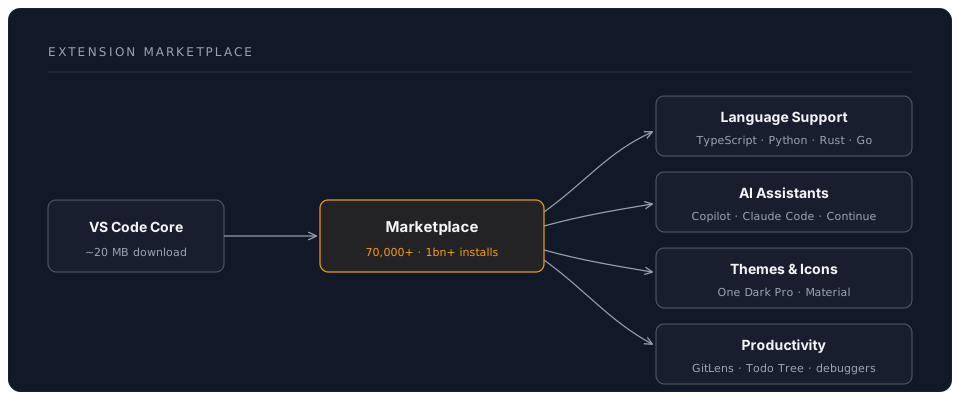
VS Code's power comes from its extension ecosystem:
Core Concepts
Extension Types
| Type | Purpose | Examples |
|---|---|---|
| Language | Language support & IntelliSense | Python, Go, Rust |
| Formatter | Code formatting | Prettier, Black, rustfmt |
| Linter | Code quality checks | ESLint, Pylint, Clippy |
| Debugger | Debug support | Python Debugger, Chrome Debugger |
| Theme | Visual customization | One Dark Pro, Dracula |
| Icon Theme | File icon customization | Material Icon Theme, vscode-icons |
| Git | Version control enhancement | GitLens, Git Graph |
| AI | AI-powered assistance | Copilot, Claude Code, Continue |
| Remote | Remote development | Remote-SSH, Dev Containers |
| Productivity | Workflow enhancement | Todo Tree, Bookmarks |
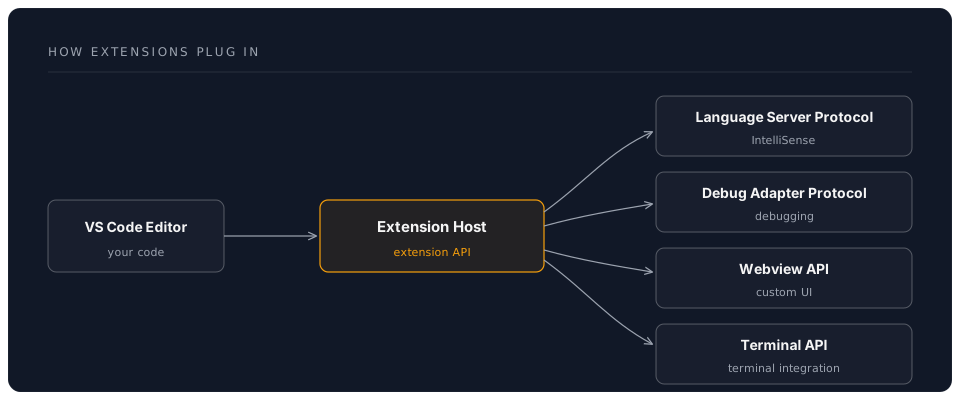
Extension Architecture
Essential Extension Categories
1. Language Support Extensions
Must-Have for Each Language:
Python:
code --install-extension ms-python.python
code --install-extension ms-python.vscode-pylance
code --install-extension ms-python.debugpy
JavaScript/TypeScript:
code --install-extension dbaeumer.vscode-eslint
code --install-extension esbenp.prettier-vscode
Rust:
code --install-extension rust-lang.rust-analyzer
Go:
code --install-extension golang.go
Configuration:
{
  "python.languageServer": "Pylance",
  "python.analysis.typeCheckingMode": "basic",
  "eslint.enable": true,
  "prettier.requireConfig": true
}
2. AI Coding Assistants (Deep Dive)
Option 1: GitHub Copilot (Cloud, Paid — Industry Standard)
code --install-extension GitHub.copilot
code --install-extension GitHub.copilot-chat
Features:
- Inline code completion with multi-line suggestions
- Chat sidebar and inline chat (
Ctrl+I) - Workspace-aware context (
@workspace) - Test generation, documentation, and code explanation
- Copilot Workspace: issue-to-PR workflow on GitHub
Configuration:
{
  "github.copilot.enable": {
    "*": true,
    "yaml": false,
    "plaintext": false
  },
  "github.copilot.editor.enableAutoCompletions": true
}
Cost: From $10/month for individuals (free for students and OSS maintainers). Check github.com/features/copilot for current plans.
Option 2: Claude Code (Terminal Agent — Best for Complex Tasks)
npm install -g @anthropic-ai/claude-code
Claude Code is not a VS Code extension — it is Anthropic's standalone agentic coding tool that runs in your terminal (including VS Code's integrated terminal). It reads your entire codebase, makes multi-file edits, runs commands, and handles complex reasoning tasks.
Key Features:
- Agentic: reads, edits, and creates files across your project
- Powered by Claude Opus by default;
/fastmode for quicker responses - Project configuration via
CLAUDE.mdfiles - Hooks system, slash commands, MCP server integration
- Subagent workflows for breaking down complex tasks
- Also available as a desktop app, web app, and IDE extensions
Setup:
npm install -g @anthropic-ai/claude-code
export ANTHROPIC_API_KEY="your-key"    # from console.anthropic.com
cd your-project && claude               # start a session
Cost: Pay-per-use via the Anthropic API (or included with the Max subscription plan). Check console.anthropic.com for current rates.
Option 3: Continue.dev (Open Source, Multi-Model)
code --install-extension Continue.continue
Features:
- Free and fully open-source
- Connect any model: Claude, GPT, Gemini, Ollama (local), and more
- Tab autocomplete with configurable models
- Chat with
@file,@folder,@docscontext references - Inline editing (
Ctrl+I) - Customisable system prompts and slash commands
Configuration (config.json):
{
  "models": [
    {
      "title": "Claude Sonnet 4.6",
      "provider": "anthropic",
      "model": "claude-sonnet-4-6",
      "apiKey": "YOUR_ANTHROPIC_KEY"
    },
    {
      "title": "GPT-4o",
      "provider": "openai",
      "model": "gpt-4o",
      "apiKey": "YOUR_OPENAI_KEY"
    },
    {
      "title": "Local Llama",
      "provider": "ollama",
      "model": "llama3:8b"
    }
  ]
}
3. Git & Version Control Extensions
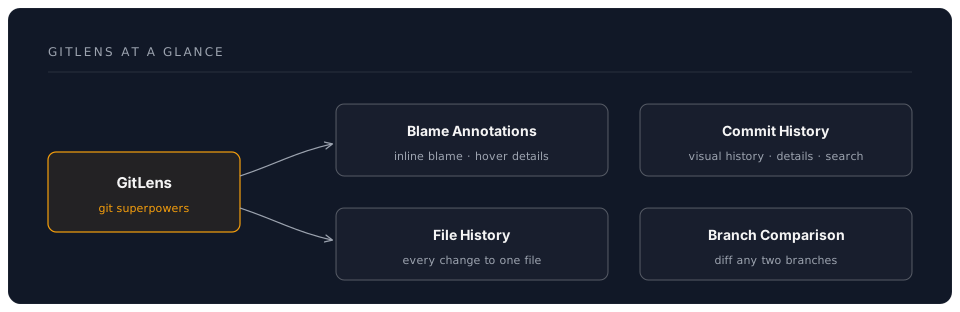
GitLens (Essential)
code --install-extension eamodio.gitlens
Key Features:
Configuration:
{
  "gitlens.currentLine.enabled": true,
  "gitlens.hovers.currentLine.over": "line",
  "gitlens.codeLens.enabled": false,
  "gitlens.statusBar.enabled": true
}
Git Graph:
code --install-extension mhutchie.git-graph
Use Case: Visual commit history, branch management
4. Code Quality Extensions
ESLint (JavaScript/TypeScript):
code --install-extension dbaeumer.vscode-eslint
Configuration:
{
  "eslint.enable": true,
  "eslint.autoFixOnSave": true,
  "eslint.validate": [
    "javascript",
    "javascriptreact",
    "typescript",
    "typescriptreact"
  ]
}
Error Lens (Visual Error Display):
code --install-extension usernamehw.errorlens
Shows errors inline in the editor—game changer for catching issues.
SonarLint (Multi-Language Quality):
code --install-extension SonarSource.sonarlint-vscode
5. Productivity Boosters
Path Intellisense:
code --install-extension christian-kohler.path-intellisense
Autocompletes file paths—saves tons of time.
Auto Rename Tag:
code --install-extension formulahendry.auto-rename-tag
Automatically rename paired HTML/XML tags.
Bracket Pair Colorizer (Built-in Now!): VS Code now has this built-in:
{
  "editor.bracketPairColorization.enabled": true,
  "editor.guides.bracketPairs": "active"
}
TODO Tree:
code --install-extension Gruntfuggly.todo-tree
Highlights TODO, FIXME, etc. comments in sidebar tree.
Better Comments:
code --install-extension aaron-bond.better-comments
Colour-codes comments by type:
// ! Critical issue
// ? Question or uncertainty
// TODO: Something to do
// * Highlighted information
6. Theme & Visual Extensions
Popular Themes:
# One Dark Pro (Atom-inspired)
code --install-extension zhuangtongfa.material-theme

# Dracula Official
code --install-extension dracula-theme.theme-dracula

# Night Owl
code --install-extension sdras.night-owl

# GitHub Theme
code --install-extension GitHub.github-vscode-theme
Icon Themes:
# Material Icon Theme
code --install-extension PKief.material-icon-theme

# VSCode Icons
code --install-extension vscode-icons-team.vscode-icons
Configuration:
{
  "workbench.colorTheme": "One Dark Pro",
  "workbench.iconTheme": "material-icon-theme",
  "material-icon-theme.folders.color": "#90a4ae",
  "material-icon-theme.folders.theme": "specific"
}
7. Remote Development
Remote - SSH:
code --install-extension ms-vscode-remote.remote-ssh
Dev Containers:
code --install-extension ms-vscode-remote.remote-containers
WSL:
code --install-extension ms-vscode-remote.remote-wsl
More in the Remote Development workshop!
Hands-On Exercises
Exercise 1: Build Your Extension Set
Create extension sets for different workflows:
Web Development Stack:
#!/bin/bash
# install-web-dev-extensions.sh

# Core
code --install-extension dbaeumer.vscode-eslint
code --install-extension esbenp.prettier-vscode
code --install-extension formulahendry.auto-rename-tag
code --install-extension christian-kohler.path-intellisense

# Framework-specific
code --install-extension dsznajder.es7-react-js-snippets # React
code --install-extension Vue.volar # Vue
code --install-extension svelte.svelte-vscode # Svelte

# CSS
code --install-extension bradlc.vscode-tailwindcss
code --install-extension stylelint.vscode-stylelint

# Tools
code --install-extension ritwickdey.LiveServer
code --install-extension ms-vscode.live-server
Python Data Science Stack:
#!/bin/bash

code --install-extension ms-python.python
code --install-extension ms-toolsai.jupyter
code --install-extension ms-toolsai.vscode-jupyter-cell-tags
code --install-extension ms-toolsai.vscode-jupyter-slideshow
code --install-extension ms-python.vscode-pylance
code --install-extension KevinRose.vsc-python-indent
DevOps/Infrastructure Stack:
#!/bin/bash

code --install-extension ms-vscode-remote.remote-ssh
code --install-extension ms-vscode-remote.remote-containers
code --install-extension ms-azuretools.vscode-docker
code --install-extension ms-kubernetes-tools.vscode-kubernetes-tools
code --install-extension hashicorp.terraform
code --install-extension redhat.vscode-yaml
Exercise 2: Configure Extension Workspace
Create a .vscode/extensions.json for your project:
{
  "recommendations": [
    "dbaeumer.vscode-eslint",
    "esbenp.prettier-vscode",
    "eamodio.gitlens",
    "GitHub.copilot"
  ],
  "unwantedRecommendations": [
    "ms-vscode.vscode-typescript-tslint-plugin"
  ]
}
When teammates open the project, VS Code suggests these extensions.
Exercise 3: Extension Performance Audit
Check extension impact:
1. Ctrl+Shift+P
2. Type: "Developer: Show Running Extensions"
3. Sort by "Activation Time" or "Runtime"
4. Disable slow extensions
Example Output:
Extension                    Activation Time   Runtime
─────────────────────────────────────────────────────
GitLens                      450ms            12ms
Copilot                      230ms            45ms
Python                       180ms            8ms
ESLint                       120ms            25ms
Theme                        50ms             2ms
Rule of Thumb:
- Activation > 500ms: Consider alternatives
- Runtime > 50ms: Check if constantly active
Pro Tips
Tip 1: Use Extension Packs
Extension Packs bundle related extensions:
Create Your Own Pack:
// package.json for custom extension pack
{
  "name": "my-dev-pack",
  "displayName": "My Dev Essentials",
  "description": "All my essential extensions",
  "version": "1.0.0",
  "engines": {
    "vscode": "^1.80.0"
  },
  "categories": ["Extension Packs"],
  "extensionPack": [
    "eamodio.gitlens",
    "esbenp.prettier-vscode",
    "dbaeumer.vscode-eslint",
    "GitHub.copilot"
  ]
}
Tip 2: Disable Extensions Per Workspace
Right-click extension → "Disable (Workspace)"
Use Case:
- Disable Python extensions in JavaScript projects
- Disable formatters in read-only projects
Tip 3: Sync Extensions Across Machines
Enable Settings Sync:
1. Ctrl+Shift+P
2. "Settings Sync: Turn On"
3. Sign in with GitHub/Microsoft
4. Check "Extensions" checkbox
All your extensions sync automatically!
Tip 4: Extension Keyboard Shortcuts
Assign shortcuts to extension commands:
// keybindings.json
[
  {
    "key": "ctrl+shift+g g",
    "command": "gitlens.showQuickCommitFileDetails"
  },
  {
    "key": "ctrl+shift+a",
    "command": "github.copilot.generate"
  }
]
Tip 5: Use Pre-Release Extensions
For cutting-edge features:
1. Go to extension page
2. Click "Switch to Pre-Release Version"
3. Get latest features before stable release
Caution: May have bugs, but often worth it for new AI features.
Extension Recommendations by Role
For Web Developers
# Core
code --install-extension dbaeumer.vscode-eslint
code --install-extension esbenp.prettier-vscode

# Productivity
code --install-extension formulahendry.auto-close-tag
code --install-extension formulahendry.auto-rename-tag
code --install-extension christian-kohler.path-intellisense
code --install-extension zignd.html-css-class-completion

# Frameworks
code --install-extension dsznajder.es7-react-js-snippets
code --install-extension bradlc.vscode-tailwindcss

# Testing
code --install-extension Orta.vscode-jest

# AI
code --install-extension GitHub.copilot
npm install -g @anthropic-ai/claude-code   # Claude Code (terminal)
For Python Developers
# Core
code --install-extension ms-python.python
code --install-extension ms-python.vscode-pylance

# Formatting & Linting
code --install-extension ms-python.black-formatter
code --install-extension charliermarsh.ruff

# Jupyter
code --install-extension ms-toolsai.jupyter

# Productivity
code --install-extension KevinRose.vsc-python-indent
code --install-extension njpwerner.autodocstring

# AI
code --install-extension Continue.continue
npm install -g @anthropic-ai/claude-code   # Claude Code (terminal)
For DevOps Engineers
# Remote & Containers
code --install-extension ms-vscode-remote.remote-ssh
code --install-extension ms-vscode-remote.remote-containers
code --install-extension ms-azuretools.vscode-docker

# Infrastructure
code --install-extension hashicorp.terraform
code --install-extension ms-kubernetes-tools.vscode-kubernetes-tools
code --install-extension redhat.vscode-yaml

# CI/CD
code --install-extension github.vscode-github-actions
code --install-extension ms-azure-devops.azure-pipelines

# Monitoring
code --install-extension humao.rest-client
For Data Scientists
# Core
code --install-extension ms-python.python
code --install-extension ms-toolsai.jupyter

# Visualization
code --install-extension RandomFractalsInc.vscode-data-preview
code --install-extension mechatroner.rainbow-csv

# Databases
code --install-extension mtxr.sqltools
code --install-extension mtxr.sqltools-driver-pg

# AI
code --install-extension GitHub.copilot
Common Pitfalls
Pitfall 1: Extension Overload
Problem: 50+ extensions, slow startup Solution: Audit regularly, disable unused
1. Check extension count: Extensions sidebar
2. Goal: < 20 extensions for most workflows
3. Use profiles for different project types (see Profiles & Sync)
Pitfall 2: Conflicting Formatters
Problem: Multiple formatters fight over files Solution: One formatter per language
{
  "[javascript]": {
    "editor.defaultFormatter": "esbenp.prettier-vscode"
  },
  "[python]": {
    "editor.defaultFormatter": "ms-python.black-formatter"
  }
}
Pitfall 3: Not Reading Extension READMEs
Problem: Missing powerful features Solution: Read README after installing
1. Click extension in sidebar
2. Read "Features" section
3. Check "Configuration" options
Pitfall 4: Outdated Extensions
Problem: Missing features, bugs Solution: Auto-update enabled
{
  "extensions.autoUpdate": true,
  "extensions.autoCheckUpdates": true
}
Pitfall 5: Trusting All Extensions
Problem: Security/privacy risks Solution: Check before installing
✅ Check:
- Number of installs (> 100k = safer)
- Rating (> 4 stars)
- Publisher (Verified publishers)
- Last update (< 6 months ago)
- Reviews (read negative ones)

❌ Avoid:
- Low installs + requests permissions
- No updates in 1+ years
- Unverified publishers for sensitive tools
Assessment
Knowledge Check
Question 1: What's the difference between an Extension Pack and installing multiple extensions individually?
Answer
An Extension Pack is a meta-extension that bundles multiple extensions together. Installing a pack installs all its included extensions at once. Benefit: Easier to share/install curated sets. Downside: You get all extensions, even ones you may not want.Question 2: How do you recommend project-specific extensions to teammates?
Answer
Create a `.vscode/extensions.json` file in your project: ```json { "recommendations": [ "dbaeumer.vscode-eslint", "esbenp.prettier-vscode" ] } ``` When teammates open the project, VS Code prompts them to install recommended extensions.Question 3: An extension is slowing down VS Code. How do you identify it?
Answer
1. `Ctrl+Shift+P` → "Developer: Show Running Extensions" 2. Sort by "Activation Time" or check "Runtime" 3. Look for extensions with high activation times (> 500ms) or runtime overhead 4. Disable the culprit, reload window, confirm improvementPractical Exercise
Build Your Perfect Stack:
-
Audit Current Extensions:
- List all installed extensions
- Categorize: Essential, Nice-to-have, Unused
- Disable/uninstall unused
-
Create Your Stack:
- Choose one AI assistant
- Install language-specific extensions
- Add 3-5 productivity extensions
- Add one theme you love
-
Configure & Test:
- Set up extension settings
- Create
.vscode/extensions.json - Test all features
- Document your choices
Target: 10-15 extensions total for optimal performance
Next Steps
You now have extension mastery! Next:
- Settings & Customisation: Configure VS Code your way
- Remote Development: Extensions deep dive
- AI Integration: Advanced AI-powered workflows
Additional Resources
Extension Discovery:
- VS Code Marketplace
- Open VSX Registry - Open source alternative
- Awesome VS Code - Curated list
Extension Development:
Estimated Time to Complete: 3-4 hours Difficulty: Intermediate Prerequisites: Introduction, Keyboard Shortcuts