# Chapter 2: Hands-On Setup - Building Your AI-Enhanced Command Centre
⏱️ **Estimated Time**: 90 minutes
🎯 **Difficulty**: Beginner
📋 **Prerequisites**: VS Code installed, internet connection
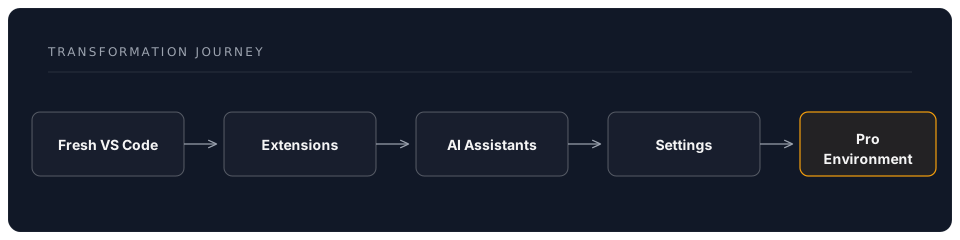
## Your Transformation Journey
By the end of this hands-on session, you'll have a production-ready development environment with AI coding assistants, modern tooling, and professional workflows.
---
## 2.1 Essential Extensions 2026
### 🤖 AI Coding Assistants
#### 1. GitHub Copilot (Industry Standard)
💡 **Best for**: Inline code completion, enterprise teams, integrated chat and workspace features
```
Extension ID: GitHub.copilot
Features:
- Inline code suggestions with multi-line completions
- Copilot Chat sidebar and inline chat (Ctrl+I)
- Workspace-aware context (@workspace)
- Test generation, documentation, and code explanation
- 50+ language support
Cost: From $10/month (free for students & OSS maintainers)
```
**Installation:**
1. Open Extensions (`Ctrl+Shift+X`)
2. Search: "GitHub Copilot"
3. Click **Install** (installs both Copilot and Copilot Chat)
4. Sign in with GitHub account
5. Activate subscription (check [github.com/features/copilot](https://github.com/features/copilot) for current plans)
**Quick Test:**
```javascript
// Type this comment and press Enter:
// Function to calculate fibonacci sequence
// Copilot will suggest complete implementation!
// Press Tab to accept, or Alt+] / Alt+[ to cycle suggestions
```
#### 2. Claude Code (Anthropic's AI Agent for the Terminal)
💡 **Best for**: Complex reasoning, multi-file refactoring, agentic coding workflows
```
Tool: Claude Code (standalone CLI + VS Code terminal integration)
Install: npm install -g @anthropic-ai/claude-code
Features:
- Agentic coding assistant that runs in your terminal
- Reads, writes, and refactors across your entire codebase
- Built-in tool use: file editing, bash commands, search
- Project configuration via CLAUDE.md files
- Hooks system, slash commands, MCP server integration
- Subagent workflows for complex multi-step tasks
Cost: Pay-per-use via Anthropic API (or included with Max plan)
```
**Setup:**
1. Install: `npm install -g @anthropic-ai/claude-code`
2. Set your API key: `export ANTHROPIC_API_KEY=your-key` (from [console.anthropic.com](https://console.anthropic.com))
3. Open VS Code's integrated terminal (`Ctrl+``)
4. Navigate to your project and type `claude` to start a session
5. Describe what you want — Claude Code reads your codebase and makes changes directly
**Why it works brilliantly in VS Code:**
Claude Code runs in the integrated terminal, so you see file changes reflected immediately in the editor. It is not a VS Code extension — it is a standalone tool that complements VS Code perfectly.
#### 3. Continue.dev (Open Source, Multi-Model)
💡 **Best for**: Free and open-source, multiple model support, full customisation
```
Extension ID: Continue.continue
Features:
- Connect any model: Claude, GPT, Gemini, Ollama (local), and more
- Tab autocomplete with configurable models
- Chat sidebar with @file, @folder, @docs context
- Inline editing (Ctrl+I)
- Fully open-source and self-hostable
Cost: FREE (bring your own API keys, or use free-tier providers)
```
**Configuration for 2026:**
```json
{
"models": [
{
"title": "Claude Sonnet 4.6",
"provider": "anthropic",
"model": "claude-sonnet-4-6",
"apiKey": "YOUR_KEY"
},
{
"title": "GPT-4o",
"provider": "openai",
"model": "gpt-4o",
"apiKey": "YOUR_KEY"
},
{
"title": "Gemini 2.5 Flash (FREE tier)",
"provider": "gemini",
"model": "gemini-2.5-flash",
"apiKey": "YOUR_FREE_KEY"
}
],
"tabAutocompleteModel": {
"title": "Gemini Flash",
"provider": "gemini",
"model": "gemini-2.5-flash"
}
}
```
🎯 Exercise: AI Assistant Comparison
**Try this with each AI tool:**
1. Create `test-ai.js`
2. Type: `// Create a React component for a todo list with add/delete`
3. With **Copilot**: press `Tab` to accept inline suggestion
4. With **Claude Code**: in the terminal, ask `claude "add a todo list component to test-ai.js"`
5. With **Continue**: select the comment, press `Ctrl+I`, type "implement this"
**Expected Results:**
- **Copilot**: Instant inline completions, great for flow
- **Claude Code**: Thorough, multi-file-aware, handles complex tasks
- **Continue**: Flexible, lets you choose your preferred model
---
### 🛠️ Essential Productivity Extensions
#### 4. GitLens — Git Supercharged
```
Extension ID: eamodio.gitlens
Why: See who changed what, when, and why
Features:
- Inline blame annotations
- File history & visual commit graph
- Compare branches side-by-side
- Interactive rebase editor
```
#### 5. Error Lens
```
Extension ID: usernamehw.errorlens
Why: See errors INLINE immediately
Before: Hover to see error
After: Error displayed directly in editor
```
#### 6. Remote Development (SSH, Containers, WSL)
```
Extension ID: ms-vscode-remote.vscode-remote-extensionpack
Why: Develop anywhere — remote servers, containers, WSL
Includes:
- Remote - SSH
- Dev Containers
- WSL
```
#### 7. Dev Containers
```
Extension ID: ms-vscode-remote.remote-containers
Why: Reproducible, shareable development environments
Benefits:
- Project-specific environments in Docker
- "Works on every machine" guaranteed
- Team onboarding in minutes
```
#### 8. Docker
```
Extension ID: ms-azuretools.vscode-docker
Why: Build, manage, and deploy containers visually
Features:
- Dockerfile and Compose IntelliSense
- Container explorer sidebar
- Image management and registry access
```
#### 9. REST Client / Thunder Client
```
Extension ID: humao.rest-client (text-based)
OR: rangav.vscode-thunder-client (GUI-based)
Why: Test APIs without leaving VS Code
REST Client: Write HTTP requests in .http files
Thunder Client: Postman-like GUI inside VS Code
```
#### 10. Prettier - Code Formatter
```
Extension ID: esbenp.prettier-vscode
Why: Auto-format on save
Supports: JavaScript, TypeScript, HTML, CSS, JSON, Markdown
```
📝 **Quick Install All:**
```bash
# Copy-paste into terminal (Ctrl+`)
# AI Assistants
code --install-extension GitHub.copilot
code --install-extension Continue.continue
npm install -g @anthropic-ai/claude-code # Claude Code (terminal tool)
# Productivity & Git
code --install-extension eamodio.gitlens
code --install-extension usernamehw.errorlens
code --install-extension esbenp.prettier-vscode
# Remote Development & Containers
code --install-extension ms-vscode-remote.vscode-remote-extensionpack
code --install-extension ms-vscode-remote.remote-containers
code --install-extension ms-azuretools.vscode-docker
# API Testing
code --install-extension humao.rest-client
code --install-extension rangav.vscode-thunder-client
```
---
## 2.2 Settings & Configuration for AI Coding
### Essential settings.json Configuration
Open Settings JSON: `Ctrl+Shift+P` → "Preferences: Open User Settings (JSON)"
```json
{
// Editor Settings
"editor.fontSize": 14,
"editor.lineHeight": 22,
"editor.fontFamily": "'Fira Code', 'Cascadia Code', Consolas, monospace",
"editor.fontLigatures": true,
"editor.wordWrap": "on",
"editor.minimap.enabled": true,
"editor.formatOnSave": true,
"editor.defaultFormatter": "esbenp.prettier-vscode",
// AI Coding Settings
"github.copilot.enable": {
"*": true,
"markdown": true,
"plaintext": true
},
"github.copilot.editor.enableAutoCompletions": true,
// Inline Suggestions (works with all AI)
"editor.inlineSuggest.enabled": true,
"editor.suggestSelection": "first",
"editor.quickSuggestions": {
"other": true,
"comments": true,
"strings": true
},
// File Management
"files.autoSave": "afterDelay",
"files.autoSaveDelay": 1000,
"files.trimTrailingWhitespace": true,
"files.insertFinalNewline": true,
// Git Integration
"git.enableSmartCommit": true,
"git.confirmSync": false,
"git.autofetch": true,
"gitlens.currentLine.enabled": true,
// Terminal
"terminal.integrated.fontSize": 13,
"terminal.integrated.defaultProfile.windows": "Git Bash",
// Error Lens
"errorLens.enabled": true,
"errorLens.enabledDiagnosticLevels": ["error", "warning"],
// Prettier
"prettier.singleQuote": true,
"prettier.semi": true,
"prettier.tabWidth": 2,
// Security
"security.workspace.trust.enabled": true,
// Performance
"files.exclude": {
"**/.git": true,
"**/node_modules": true,
"**/.DS_Store": true
}
}
```
💡 **Tip**: Copy this entire JSON block and paste into your settings!
---
## 2.3 Keyboard Shortcuts for Productivity
### Essential Shortcuts (2026 Edition)
| Action | Windows/Linux | Mac | Description |
|--------|--------------|-----|-------------|
| **AI Chat** | `Ctrl+I` | `Cmd+I` | Open inline AI chat |
| **Copilot Panel** | `Ctrl+Shift+I` | `Cmd+Shift+I` | Open Copilot sidebar |
| **Command Palette** | `Ctrl+Shift+P` | `Cmd+Shift+P` | Access all commands |
| **Quick Open** | `Ctrl+P` | `Cmd+P` | Open file by name |
| **Terminal** | `Ctrl+`` | `Ctrl+`` | Toggle terminal |
| **Multi-cursor** | `Alt+Click` | `Option+Click` | Edit multiple lines |
| **Format Document** | `Shift+Alt+F` | `Shift+Option+F` | Auto-format |
| **Go to Definition** | `F12` | `F12` | Jump to code |
| **Rename Symbol** | `F2` | `F2` | Rename everywhere |
🎯 Exercise: Keyboard Shortcut Challenge
**Complete these tasks using ONLY keyboard shortcuts:**
1. Open Command Palette
2. Create new file
3. Ask AI to generate a function
4. Format the code
5. Open terminal
6. Save file
**Time yourself!** Goal: <30 seconds
---
## 2.4 Remote Development Setup
### SSH, Containers, and WSL
#### Option 1: Remote - SSH
💡 **Best for**: Working on remote servers, cloud instances
```
Extension: ms-vscode-remote.remote-ssh
Use cases:
- Edit files on Linux servers
- Develop on cloud VMs
- Access remote dev environments
```
#### Option 2: Dev Containers
💡 **Best for**: Consistent environments, team projects
```
Extension: ms-vscode-remote.remote-containers
Benefits:
- Project-specific environments
- Shareable configurations
- No "works on my machine"
```
**Quick Start Dev Container:**
Create `.devcontainer/devcontainer.json`:
```json
{
"name": "Node.js AI Dev",
"image": "mcr.microsoft.com/devcontainers/javascript-node:22",
"features": {
"ghcr.io/devcontainers/features/github-cli:1": {}
},
"customizations": {
"vscode": {
"extensions": [
"GitHub.copilot",
"Continue.continue",
"esbenp.prettier-vscode",
"eamodio.gitlens"
]
}
},
"postCreateCommand": "npm install && npm install -g @anthropic-ai/claude-code",
"forwardPorts": [3000]
}
```
#### Option 3: WSL (Windows Only)
💡 **Best for**: Windows users wanting Linux environment
```
Extension: ms-vscode-remote.remote-wsl
Setup:
1. Install WSL2
2. Install VS Code WSL extension
3. Open folder in WSL
4. Full Linux + VS Code integration!
```
---
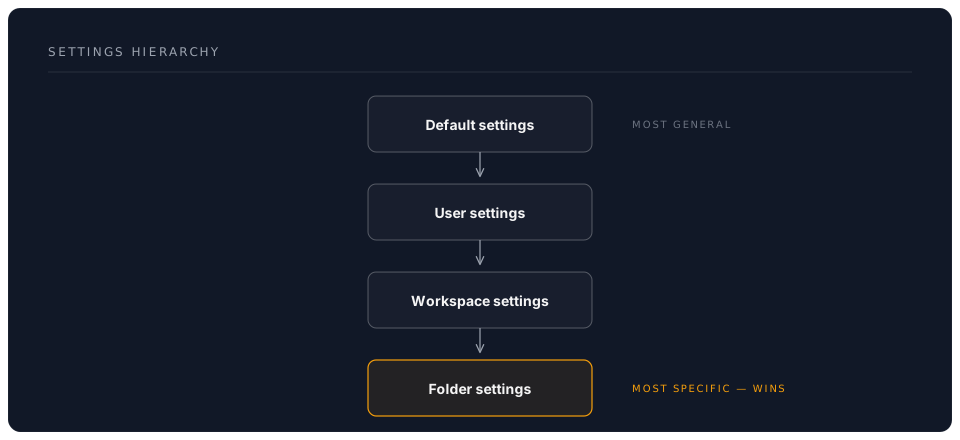
## 2.5 Workspace vs User Settings
### Understanding the Hierarchy
### When to Use Each
**User Settings** (`.config/Code/User/settings.json`):
- Personal preferences
- AI API keys
- Theme and font choices
- Applies to ALL projects
**Workspace Settings** (`.vscode/settings.json`):
- Project-specific config
- Team formatting rules
- Language-specific settings
- Committed to Git
**Example Workspace Settings:**
```json
{
"editor.formatOnSave": true,
"editor.defaultFormatter": "esbenp.prettier-vscode",
"[javascript]": {
"editor.tabSize": 2
},
"[python]": {
"editor.tabSize": 4,
"editor.defaultFormatter": "ms-python.black-formatter"
},
"files.exclude": {
"**/__pycache__": true,
"**/node_modules": true
}
}
```
⚠️ Warning: API Keys in Settings
**NEVER commit API keys to workspace settings!**
❌ **Bad** (workspace settings):
```json
{
"anthropic.apiKey": "sk-ant-xxx"
}
```
✅ **Good** (user settings):
```json
{
"anthropic.apiKey": "sk-ant-xxx"
}
```
Or use environment variables:
```json
{
"anthropic.apiKey": "${env:ANTHROPIC_API_KEY}"
}
```
---
## 2.6 Project Setup Best Practices
### Professional Project Structure
```
my-project/
├── .vscode/
│ ├── settings.json # Team settings
│ ├── extensions.json # Recommended extensions
│ └── launch.json # Debug configurations
├── .devcontainer/
│ └── devcontainer.json # Container config
├── src/
│ └── index.js
├── tests/
│ └── index.test.js
├── docs/
│ └── README.md
├── .gitignore
├── .prettierrc
└── package.json
```
### Recommended Extensions File
Create `.vscode/extensions.json`:
```json
{
"recommendations": [
"github.copilot",
"continue.continue",
"eamodio.gitlens",
"esbenp.prettier-vscode",
"usernamehw.errorlens",
"ms-vscode-remote.remote-containers",
"ms-azuretools.vscode-docker"
]
}
```
💡 **When teammates open the project**, VS Code will suggest installing these!
---
## 2.7 AI Coding Best Practices
### Getting the Most from AI Assistants
#### 1. Write Clear Comments
❌ **Vague**:
```javascript
// make function
```
✅ **Specific**:
```javascript
// Create async function that fetches user data from API,
// handles errors with try-catch, and returns formatted user object
```
#### 2. Use AI Chat for Planning
```
You (in Claude Code): "I need to build a REST API for user authentication"
Claude Code:
1. First, let's plan the architecture
2. We'll need these endpoints: /register, /login, /logout
3. Here's the file structure I recommend...
4. Let me create the files and implement this...
```
#### 3. Iterate and Refine
```
You: "Make this function more efficient"
AI: [suggests optimization]
You: "Add error handling"
AI: [adds try-catch]
You: "Add JSDoc comments"
AI: [adds documentation]
```
#### 4. Use AI for Learning
```
You: "Explain this code line by line"
You: "What's a better way to do this?"
You: "What are the edge cases I should test?"
```
---
## 2.8 Verification Checklist
### Confirm Your Setup
- [ ] VS Code installed and updated
- [ ] At least one AI assistant working
- [ ] GitLens showing file history
- [ ] Error Lens displaying inline
- [ ] Auto-save enabled
- [ ] Format on save working
- [ ] Terminal accessible
- [ ] Project structure created
- [ ] Can use `Ctrl+I` for AI chat
- [ ] Keyboard shortcuts working
### Quick AI Test
Create `test.js`:
```javascript
// Type this and let AI complete:
// Function to validate email address with regex
// Expected: AI generates complete validation function
```
---
## 2.9 Common Issues & Solutions
### AI Assistant Not Working
**Issue**: No AI suggestions appearing
**Solutions**:
1. Check API key: `Ctrl+Shift+P` → "Settings" → Search "api key"
2. Verify internet connection
3. Reload window: `Ctrl+Shift+P` → "Reload Window"
4. Check extension logs: Output panel → Select extension
### Format On Save Not Working
**Issue**: File doesn't format when saving
**Solutions**:
1. Verify Prettier is default formatter:
```json
"editor.defaultFormatter": "esbenp.prettier-vscode"
```
2. Check format on save enabled:
```json
"editor.formatOnSave": true
```
3. Install language-specific formatter
### Extensions Slow
**Issue**: VS Code feels sluggish
**Solutions**:
1. Disable unused extensions
2. Check extension performance: `Ctrl+Shift+P` → "Developer: Show Running Extensions"
3. Increase memory limit:
```json
"extensions.experimental.useUtilityProcess": true
```
---
## 🎉 Achievement Unlocked!
**You now have:**
✅ Production-ready VS Code environment
✅ Multiple AI coding assistants
✅ Professional settings and shortcuts
✅ Remote development capabilities
✅ Best practices workflow
### Next Steps
1. **Practice** keyboard shortcuts daily
2. **Experiment** with different AI assistants
3. **Customize** settings to your preferences
4. **Explore** extensions marketplace
5. **Share** your setup with `.vscode/extensions.json`
---
**Pro Tips:**
💡 Switch AI tools based on task:
- **Quick inline fixes**: GitHub Copilot (instant completions)
- **Complex multi-file tasks**: Claude Code in the terminal (agentic reasoning)
- **Flexible model choice**: Continue.dev (swap between Claude, GPT, Gemini, local models)
📝 Create keyboard shortcut cheat sheet and pin it near monitor
**You're now equipped like a professional developer.**
---
**Next**: [Chapter 3: Practical Exercises](./03_exercises.md)
[Back to Concepts](./01_concepts.md) | [Back to Workshop Overview](README.md)